Making Your Word Processor HTML Friendly

Update 08/2011
As a commentor was kind enough to point out below, disabling Smart Quotes or Magic Quotes in LibreOffice* changed in the 2 years since this article was written.
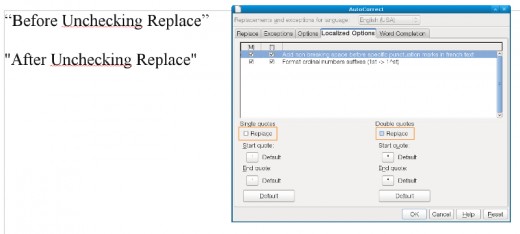
It is still under Tools->Autocomplete
However, it is now under the "Localized Options" tab.
To disable smart quotes in Libre Office 3.3, and probably the current 3.4.1 version:
1. Goto Tools -> Autocomplete
2. Click on the "Localized Options" tab.
3. Make sure the box labeled "Replace" under the "Double Quotes" and "Single Quotes" sections is NOT checked.
You can also, optionally, select a different type of Unicode quote, by clicking on the picture of the quote.
*Libre Office is the forked version of Oracle Open Office.
Do I really Need to Disable Smart Quotes?
Not only has the process of disabling smart quotes changed, but the necessity has as well. Depending on the situation, you may find that you do not actually need to even worry about it anymore.
For example, the following were copied directly from open office, into Hubpages, you can see what they looked like in the picture above. 2 years ago, when this article was first written, you would of had to have posted in "html" mode to avoid display errors.
“Before Unchecking Replace”
"After Unchecking Replace"
The Problem
I do a lot of writing and have found that most online editors leave something to be desired, although the Hub Pages Editor is fairly intuitive.
Instead of using a site’s built in text editor, I usually either use Microsoft Word or OpenOffice. Not only do I like the environment better because it is a lot bigger and easier to use, I also like to save what I am writing on my computer before publishing it online.
There are two settings that I usually change to make Microsoft Word and Open Office better web content creators. That is to disable Smart Quotes, which are on by default, and to change the way words with numbers in them are dealt with in the spell checker.
Both of these tasks are very easy to do.
What Are Smart Quotes?
Smart Quotes are also sometimes called curved quotes and are not very HTML friendly.
For something you are actually going to print onto regular paper, smart quotes probably do look nicer, but problems can arise when you try to use them with a web service. A smart quote curves slightly inward towards the word inside the quotes.
When you try to use them online, they will often be converted to question marks. For example, you might write: “I couldn’t get up this morning” in Microsoft Word, but when you paste it into the website and save it, you will see “I couldn?t get up this morning.”
This can be disabled in the settings of each program, so you can copy and paste straight from your favorite Word Processor into your favorite web site.
Disabling Smart Quotes in Microsoft Word
To turn off smart quotes in Mircosoft Word, go to:
Tools -> AutoCorrect Options
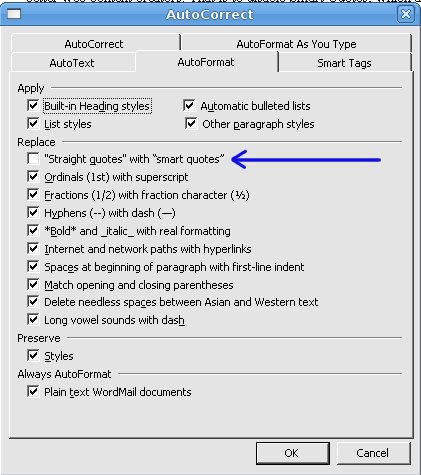
- Select the tab labeled "Auto Format" and deselect the box labeled "Straight Quotes with Curly Quotes." You can see the difference in quotes by looking at this setting too.
- Next Select the tab labeled "Auto Format as you Type" and deselect the box labeled "Straight Quotes with Curly Quotes."
Disabling Smart Quotes in Open Office
Update 2011, Please see top of page for newer versions of Open Office / Libre Office.
In OpenOffice, the settings to turn off curved quotes is in more or less the same place. Go to:
Tools -> AutoCorrect
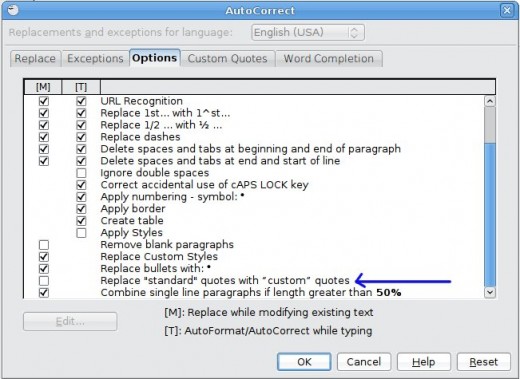
- Click on the "Options" Tab. Scroll to the bottom and uncheck the box marked "Replace standard quotes with custom quotes".
- Click on the "Custom Quotes" tab. There are two boxes that say "Replace." If either of these boxes is checked, uncheck them.
Words with Numbers in Them
There is one other default setting that I usually change in both OpenOffice and Microsoft Word. This is how words with numbers are treated. By default, if you type mist4ke by accident, the spell checker will not mark it as wrong. This is because by default, words with numbers in them are ignored.
Generally, when I type a word with a number in it, it is because I made a mistake, so I like to disable this setting.
In Microsoft Word Go To:
Tools -> Options
- Click on the "Spelling & Grammar" Tab.
- Uncheck the box that says "Ignore words with numbers" and click OK.
In OpenOffice Go To:
Tools -> Options
- Double Click on "Language Settings"
- Click on "Writing Aids"
- Under the "Options" Section, check the box next to "Check Words with numbers" and click OK.
Related
Advantages and Disadvantages of Microsoft Word
IncludePicture: How To Mail Merge Graphics and Photos in Microsoft Word Step By Step
How to Use Word Processing Software (NVQ Diploma in Business and Administration & IT)
How to Use the Microsoft Office Word 2007 Page Layout Ribbon Tab

Computers Are Stupid