Maintenance - Computer Fan

Extending the life of an ailing fan in your computer
First of all, the disclaimer:
I don't recommend this as any type of preventative maintenance, or to make your computer quieter. This operation is only a 'last resort' type of solution if you have a fan that is getting noisy or hesitates. It should also only be performed by someone who is comfortable getting their hands dirty inside a computer case.
Following the description below is a picture tutorial.
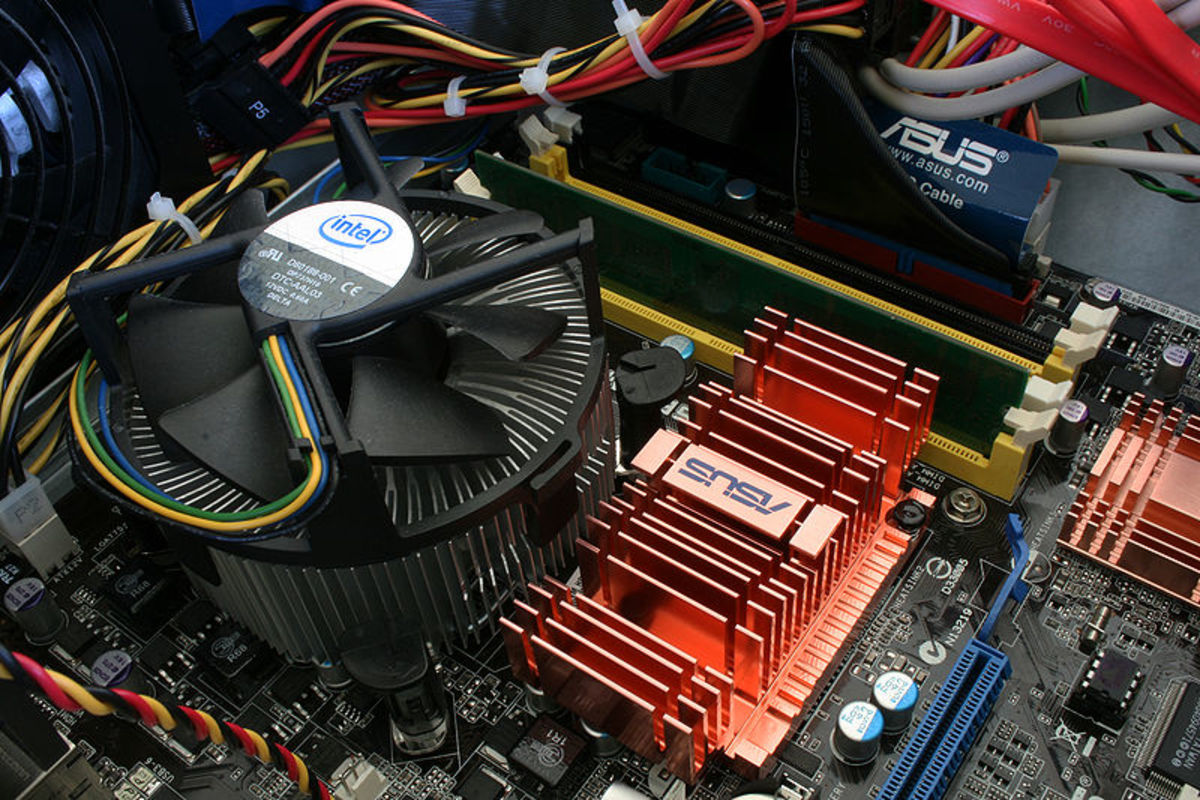
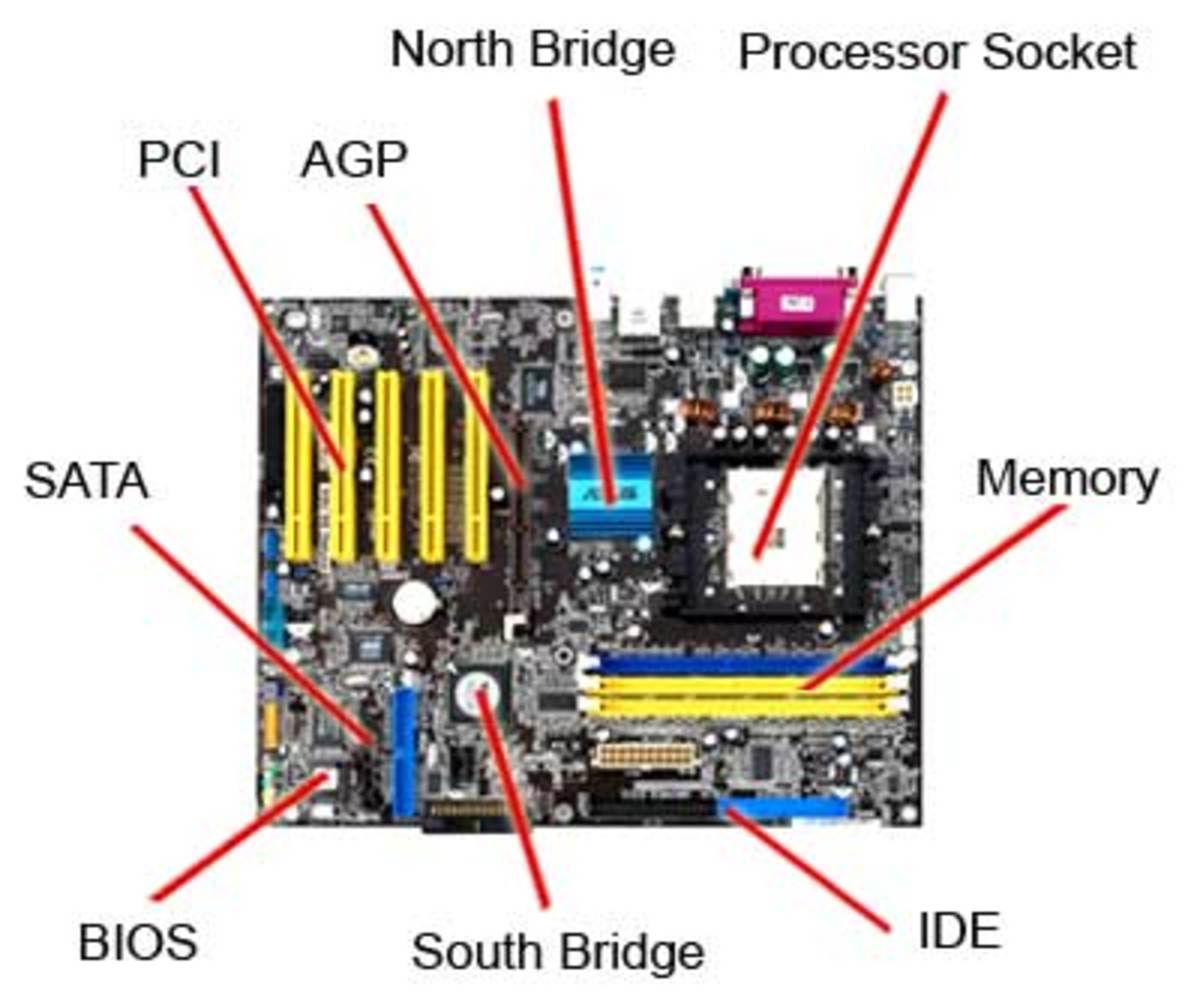
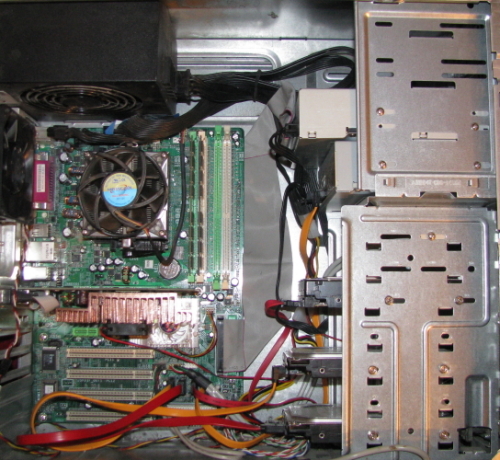
The fan in question for this tutorial is located on the North Bridge heat sink on my motherboard. For more than a month it had been getting louder and would sound like it was hesitating. It wouldn't actually completely stop, but I could hear it slowing and then speeding back up. It also got progressively louder.
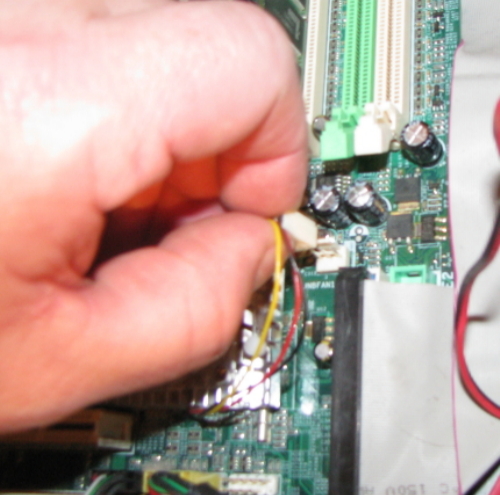
I verified that this particular fan was the cause of the noise by turning the computer off, then unplugging the fan, then starting the computer back up. I hit F8 during POST to enter the Safe Mode Boot screen, and then shut my computer back down. This prevented any significant heat buildup while I was checking the fans.
A call to the manufacturer of the motherboard gave me two options. Call the chipset manufacturer, or do a little maintenance myself. It was kind of funny. If I wanted to replace the fan myself (with an aftermarket fan), it would void the warranty. If I pulled the fan off the motherboard and worked on it and put it back, I was all right.
I obviously opted for the latter solution. My option to call the chipset manufacturer was on hold until I found out if I could fix the problem myself. So I followed the instructions given to me. I pulled the fan off of the motherboard and used a can of compressed air to blow out the dust around the motor. This didn't really change the way the fan felt as I turned the blades. It felt gummed up and sluggish. These fans are supposed to spin freely with a very slight pull when the magnets in the motor align. The next step was to use a q-tip to apply a little bit of alcohol to the bearing. This step had me a little worried, but I was following what the tech support guy told me to do, so I was OK as far as the warranty was concerned. I put just enough alcohol on the shaft (only the shaft) of the bearing to wet it and then turned the fan. Then I put a little more, then more. When I felt the fan spinning more freely, I stopped dabbing more alcohol onto the shaft. I used a clean q-tip to dab off any excess and then put the fan back.
The fan worked well for about a week, and then I could hear it again. This sound was different, though. It sounded more like the bearing was now dry, which makes sense. The alcohol cleaned the bearing out, including the old dirty lubricant. Then, it dried up. So I took matters into my own hands. It was a risk, but I figured that the chipset manufacturer could sell me a new fan if something happened. (I still plan on contacting them about a replacement if this doesn't last, but it has been almost a month now.) I took the fan back out and used a toothpick to dab a bit of household 3-in-1 oil onto the end of the shaft and then worked that in by turning the fan and then pushing the shaft down repeatedly (there is a little bit of spring action). After I put the fan back in and closed up, the fan is now quiet as it should be.
As I have said, this should be a last-ditch effort to save a fan that is hard to find or obsolete, or a stop-gap until you can get a new fan. It worked for me, but I make no guarantee as to your success. Good luck and thank you for reading my HubPages.
Update: This fix worked for about six weeks before the fan started making noise again. I repeated the process and I'm now contacting the chipset manufacturer to procure a replacement fan.
Update part two: I have a new fan, but the old fan is still quiet and functioning well. My motherboard itself went through an illness, though, and was down for a month. This was due to failing capacitors. I've replaced them and my computer is back up and running with my old NB fan still in service.
Inside the Case
Fans
Removing the Video Card
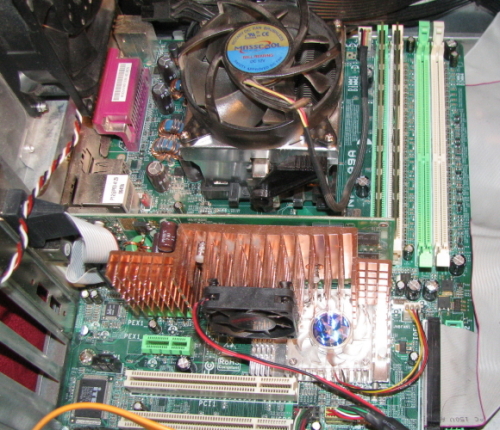
![I had to remove the video card to get to the NB heatsink fan. First I removed the screw securing the card to the back of the case. [Yes that is an aftermarket 40mm fan stuck to the heatsink on the video card]](https://usercontent2.hubstatic.com/898443.jpg "I had to remove the video card to get to the NB heatsink fan. First I removed the screw securing the card to the back of the case. [Yes that is an aftermarket 40mm fan stuck to the heatsink on the video card]")
Unplug the Fan
Remove the Screws
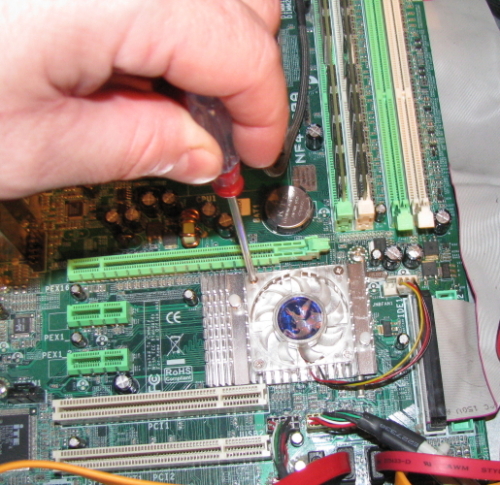
Remove the Fan
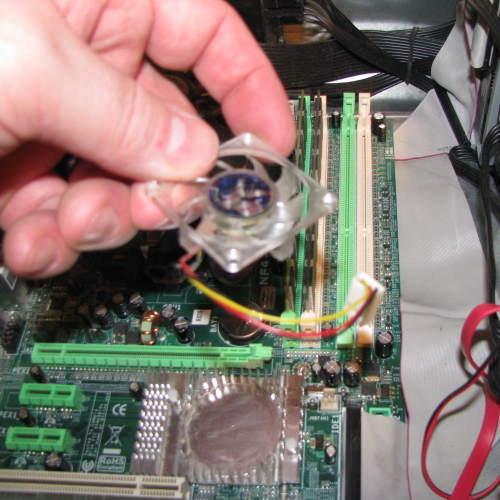
Sticker Removal
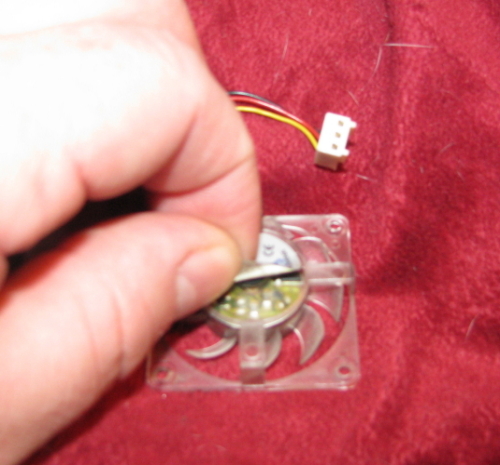
Bearing Dust Cover
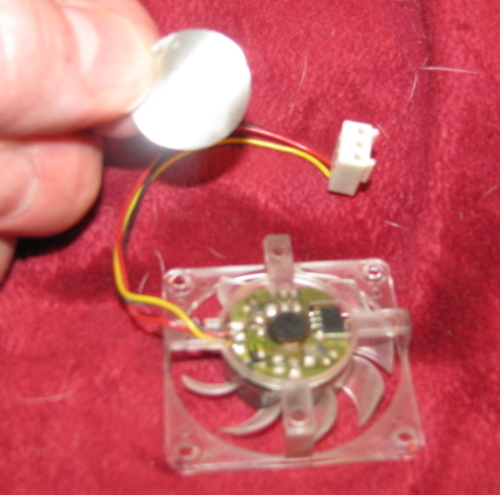
Dust Cover Removal (part 1)
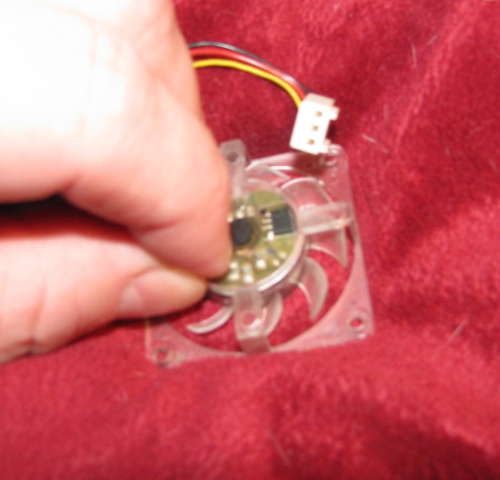
Dust Cover Removal (part 2)
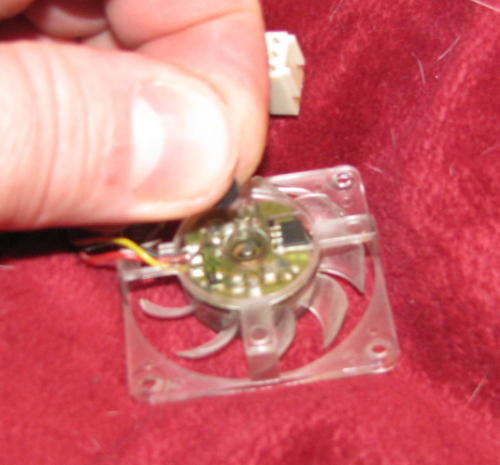
Bearing Shaft
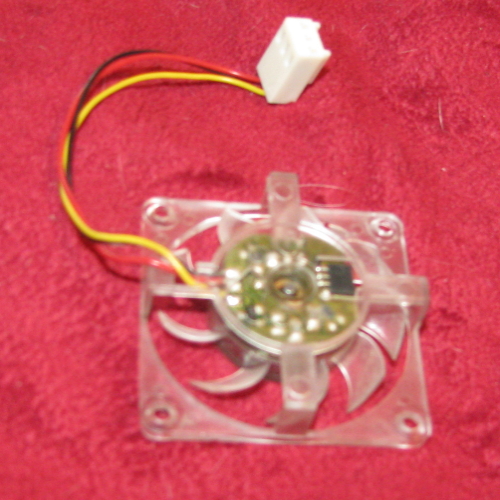
Blow and Dab
It was at this point that I used compressed air to blow all the dust out of the fan and then used a cotton swab to dab alcohol onto the bearing shaft. Do not use compressed air after using the alcohol. I would not recommend getting alcohol on the circuts... Use a clean facial tissue or cotton swab instead.
Oil Transfer Point
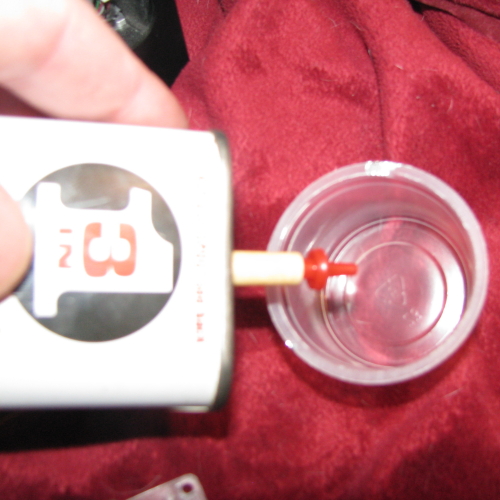
Use a Toothpick
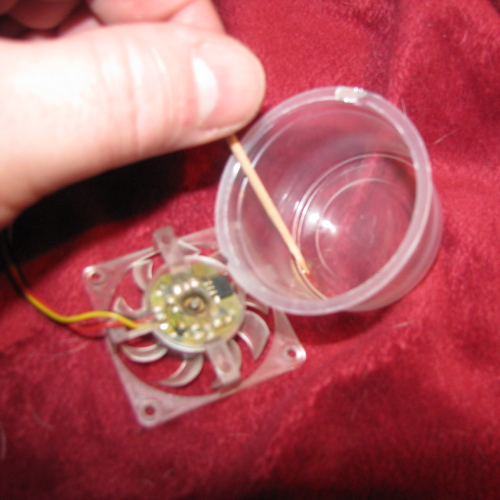
Using the Toothpick
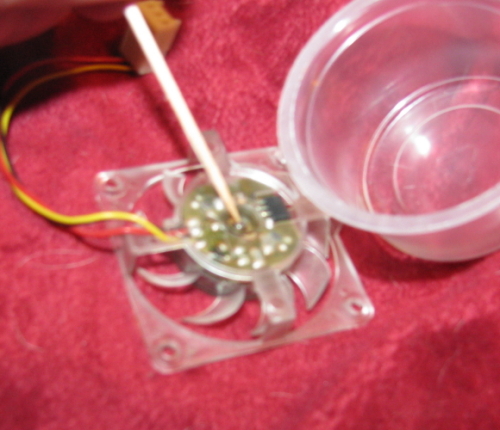
Replace the Dust Cover
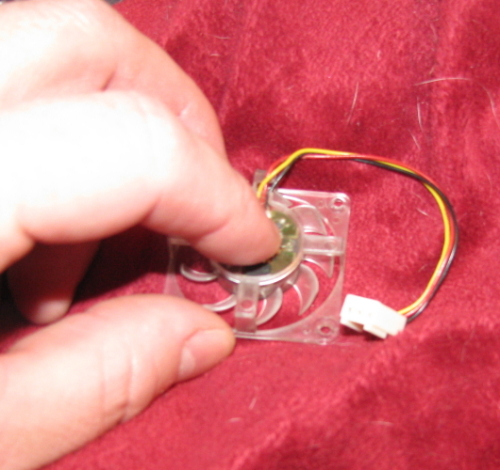
Replace the Sticker
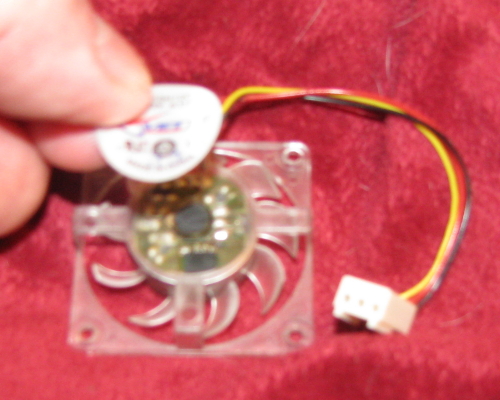
Finished Fan
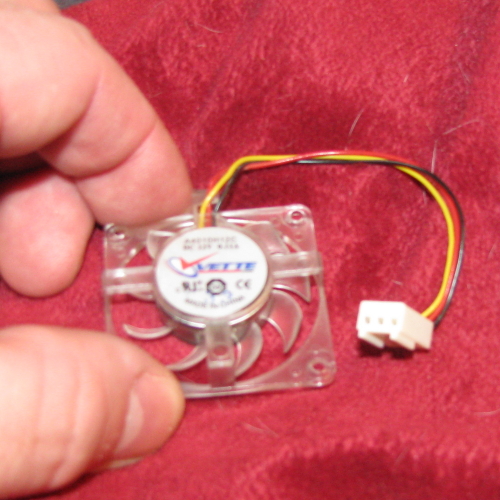
Place the Fan on the Heatsink
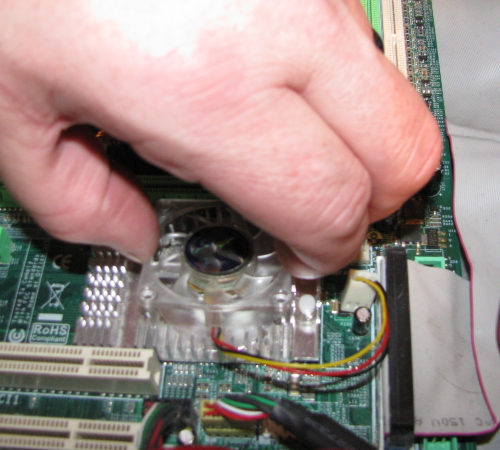
Secure the Fan
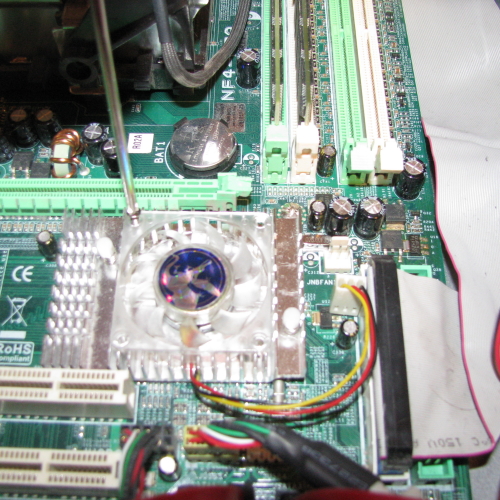
Plug in the Fan
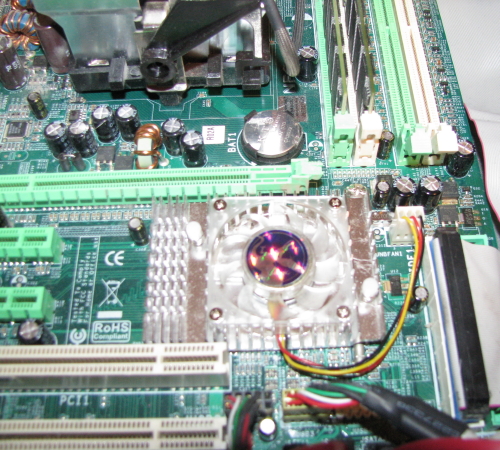
Replace Video Card
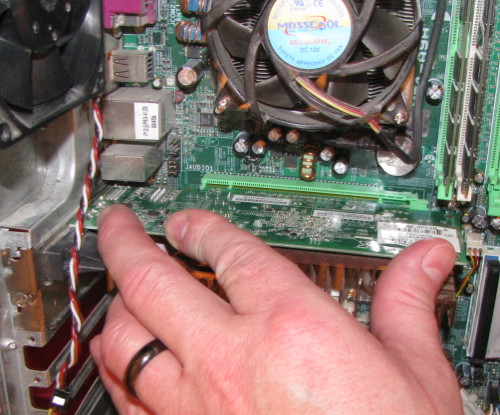
You're Done!
Well, after you put the cover back on and plug everything into the back of the computer, etc... I hope this helps keep your computer quiet and cool until you can replace the fan.
Thank you for reading my HubPages!