Remote access to your PC or a friends PC, how to do it with 5 good choices
83
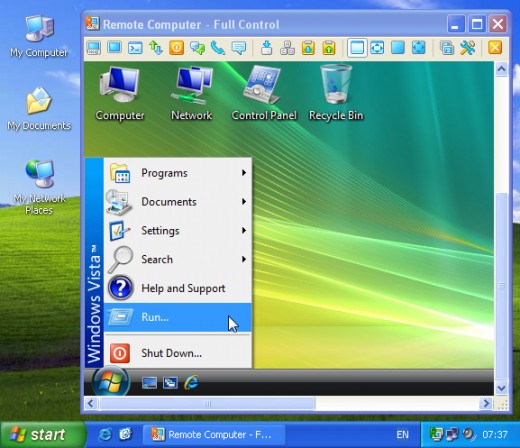
You can sit at a PC in Cave Creek Arizona and reach out and control another PC on Wall Street in New York City. I do it every day. The location is unimportant. All you need is an Internet connection at both locations, a little software help and permission. You can remotely control another PC, move the mouse, look at settings, read or edit a document, and even transfer files. Good remote access software solutions have security to prevent unauthorized access.
With computer technology there are almost always several way to get a job done. Some are good, some are bad, and some are scary. Here are five tested and secure ways to remotely control a PC for support or training. Some are free, and some have a cost. There are pros and cons to each choice, so pick the solution that best meets your needs. The short list of remote access software (details below):
- Crossloop - fast, simple and secure. File transfer. Session oriented. Free service.
- PCAnywhere - robust, powerful, complete feature list. Persistent Host or Session Host. Purchase software.
- Logmein - easy setup, good control. No file transfer. No remote printing Persistent host. Free service.
- GoToMyPC - easy setup, good control, file transfer, remote printing. Persistent host. Monthly charge.
- XP Remote Access - good features. Requires VPN tunnel or IP address.
Some considerations in making your selection:
- The PC that is the target of the access is called the Host. The support PC is sometimes called the Client. The Client PC controls the Host PC.
- A persistent host means the host software is always loaded and ready for a support connection. This is useful in on-going support relationships.
- A session connection means that the connection door is closed after you hang up. A session connection type of access is your best bet for short term, or sporadic support. That would be CrossLoop.
- If you are in the support business, you prefer a persistent connection for your convenience, but need to be aware of the secuity implications for your client, as well as setup or connection demands on the client.
- The most secure (for the user) is a session connectiom.
- If you need to connect independently to the Host (without user involvement) you need a persistent connection.
- Firewalls and corporate policies have an impact on remote access choices.
- Spyware software may catch and complain about a persistent connection.
CrossLoop
CrossLoop is a number one choice because it is simple to install and use and it is session oriented, which is more secure.
Both the host and the support PC need to download and install the CrossLoop client. Then the Host starts CrossLoop, selects the Host tab, reads the code to the support person and clicks connect.
The support person starts CrossLoop, selects the Join tab, enters the code and clicks connect. The support PC has a 2 minute window to connect. The Host PC must accept the join request.
Very simple, very secure, and best of all when the session ends, the connection cannot be restarted by the support person without a new code and permission.
CrossLoop uses the free, open-source VNC (Virtual Network Computing) viewer and server combination from TightVNC. CrossLoop makes it possible for VNC to operate when either or both of the computers are situated behind restrictive firewalls.
PCAnywhere, you get what you pay for...
PCAnywhere is the gold standard in remote access software. It offers the best graphics in full screen mode of any of the choices. In addition to remote control you get such goodies as: a chat feature, file transfer and remote printing. PCAnywhere is the best choice for an ongoing support link. Some considerations:
- You purchase the software.
- Host and client software is installed on each PC.
Checkout Symantec's PCAnywhere here.
LogMeIn, free and easy access
LogMeIn has a large suite of remote control options. Keep it simple and try LogMeIn Free. It is easy to setup and use.
- You create an account with LogMeIn Free here.
- Go to the Host PC and login to your account. Click on Add Computer.
- Install the host software, which now shows up in your list of hosts.
- To support, login to your account, and pick the host you want to connect and support.
Clean interface. Easy access. No user issues. It is a persistent client.
If you need file transfer or remote printing, you need to pay for LogMeIn Pro here.
GoToMyPC, a solid support connection
GoToMyPc is a great remote access service. It is part of Citrix, and is a well constructed, easy to use service.
There is a monthly fee, but for the serious support user it can be a good value. You can get a 30 day trial here.
The process is simple:
XP
According to Microsoft, "Remote Desktop, included with Windows XP Professional, enables you to connect to your computer across the Internet from virtually any computer...". Considerations:
- Microsoft Windows XP Professional must be installed on the computer containing the files and programs that you want to access from a remote computer.
- The computer must also be part of a corporate network in which Remote Desktop connections are permitted.
- The remote computer must be running Windows 95 or later and must also have the Remote Desktop Connection client software installed.
- Both computers must be connected to the Internet through a VPN connection. If you're not connecting to the host computer through a VPN, you'll need to use the actual IP address of the host computer instead of the computer name.
Get started using Remote Desktop with Windows XP Professional here.
PrintShare it! — Rate it: up down flag this hub
Comments
When I get roped into doing virtual support, I tend to use MS messenger and then have them send a request to grant a remote session which is part of XP.
Hi Paul, they key in remote support choices is often the end user - what do they have as resources (e.g. are they signed up and running messenger, what OS are they running, etc) and how hard or easy is it for them to participate in the process of setting up the connection. Fortunately, I'm generally able to have system access and have more independent choices.
Can you restate this in English please for us more computer illiterate people? Just kidding. The terminology and info you have provided is really neat. I like the way you began the article.
Thank you Runningman. Still working on the English translation...
WOW! Thanks! I was searching for that kind of free software for quite some time. Supporting my parent's computer on the other side of the globe is a nightmare without such a tool...
Nice hub, well written. Very interesting.
Great Hub...well documented....excellent.
I use logmein on a daily basis and have some 40 or so pc's in my account, never had a problem...and as you say EASY install and setup, I used to use pcanywhere but found it cumbersome.(Mind you...long time ago now so symantec may have improved things)
It's worth mentioning that the paid version of logmein provides a remote deployment, very useful for situations where it's not practical to get the user to run the install.
hey this is good to know! Can evildoers get into our machines without our knowledge?hmmm
Hi jstankevicz,
Nice Hub.
I am actually looking for the type of Remote Access where you just send a file (executable one, through email) to one of your Users and when s/he runs it a link is automatically established between his computer and yours.
I am asking it because as you know, most of the users are not that technically expert to establish connection.
Hi HelpingGuy, LogMeIn has a service like that; it is not free but is intended for techs to make an easy, one time connect for support. It's called LogMeIn Rescue.
It's a good information. But did you heard about WAYD software? How about this program, it is work?
I'll be waiting for you answer.
I invite you to read my hubs.
Very detail. After reading this article, I think I can try some time.
Thanks for the list. I've been looking for these recommended programs for me to access other PC's. I have here an idea of peeking into my friend's PC for me to know his activity. LOL
Good blog post. Very informative. You mentioned security issues several times, which is important. Remember, that especially if you're visiting another country and you are then accessing your computer from some internet cafe, there are always people waiting to steal your data. Make sure that whatever software you use is carefully encrypted against just such attacks. Thanks for the post.
Thanks for the tip! My spouse needs to find a way to access the work computer so a price can be set without going in for something so mundane.
Cool - hve some thumbs up !
I use NTRglobal. They have several different products that are beneficial to the IT world. I use NTRsupport and NTRconnect.
With NTRconnect I can connect to my home computer from anywhere there is an internet connection. It also provides file transfer with 256crypto. I also have a web design and computer repair business. I use NTRsupport alot for business. I can remote into a client's computer and perform works on web code, or troubleshoot just about any PC issue. It is a great product and very user friendly. I suggest trying it out. They have free trials on all their products. www.ntrglobal.com I hope this provided some more help and options.


jstankevicz says:
2 years ago
I've used each of these remote access choices. In some clients I have mutiple access points to give me flexibility. I can get to any desktop in seconds.