A Complete Guide for 'My Maps-Google'

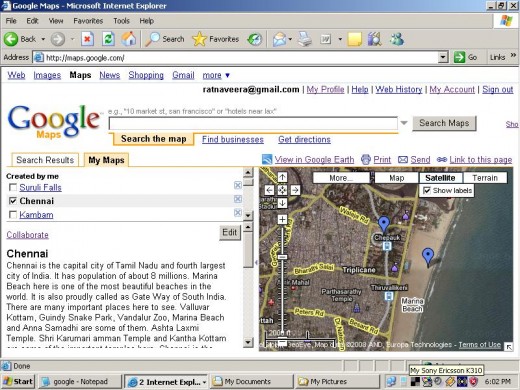
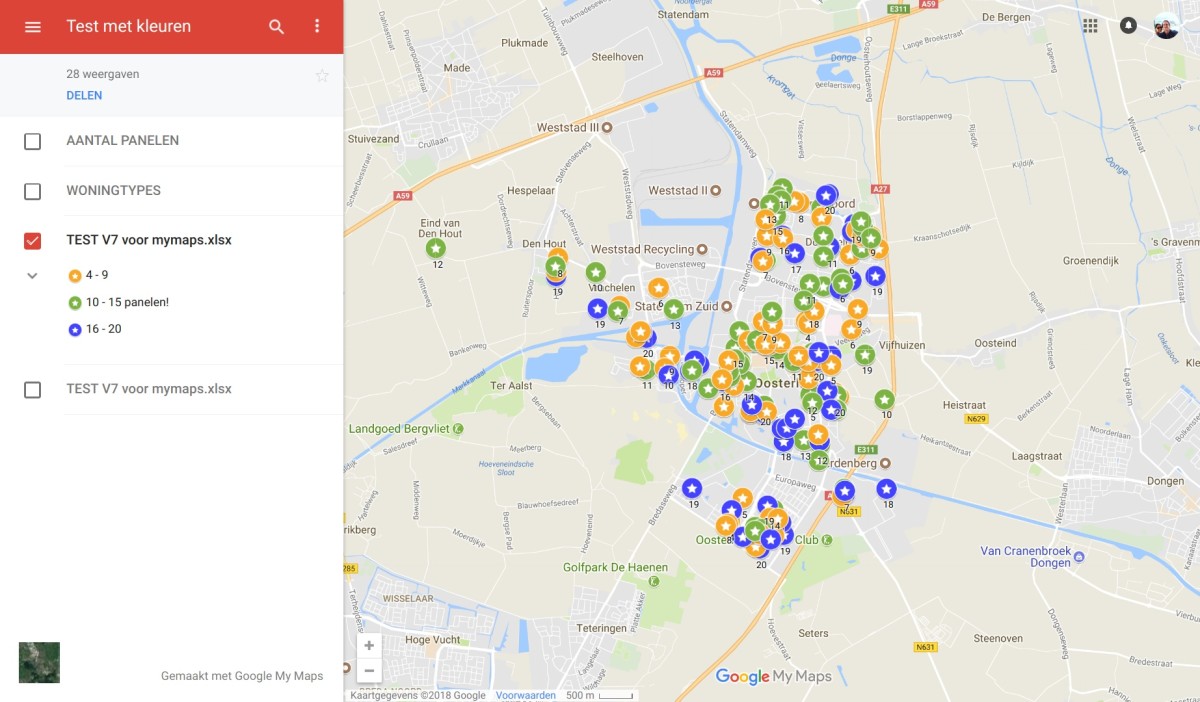
Really it would be very interesting to recollect our school days when we learned to locate important cities, rivers and mountains in a country's map or a world map. Maps are the things that have mingled in our daily life. We can learn many things about a country or state, before visiting there, with the help of a map. In this computer age our Google has done a great work, with the support of NASA, called 'Google Maps' by which we can see not only the maps of various parts of the world and also of our own living town and street. Even we can locate our house in that map. Depending upon your location you can see basic map or a customized map. Besides tourist and geographical information of a particular location, we can also gather business details of the same. If you are doing a business, you can help your customers with the help of Google Maps. For this you have to open the link, local business centre, to create your free listing. When the customers search for the information, they will find your business with other details such as working hours even the photos of your office. We can also get contact information and driving directions from Google maps.
My Maps in Google
Google affords a great chance of creating 'my maps' account to every Gmail account holder. This will be really interesting to create the maps of our favorite places particularly for those who really love this subject. As I am from South India, I have added maps of some important places of South India in my Google Maps account. Recently I published a blog in which six of the maps have been posted. The blog name is Google Satellite Maps of Important Places of South India. In that site we can see the maps of Cape comorin, Madurai, Ooty, Cochin, Bangalore and Chennai. It is my pleasure to share with all of you my Google Maps experiences. I would like to present this Hub as a complete guide for 'My Maps-Google'.
You Just Need A Gmail Account
To create your My Maps account, first of all you need to open a gmail account. It hardly needs 5 minutes to open it. After successfully creating your gmail account, open the site http://maps.google.com/ There you can search any map and enjoy it even though you are not having a gmail account. But, to create and edit your maps you need an account and have to sign in with the same details that you use for your gmail account. After signing in, you will be welcome to your My Maps account.
Searching Your Maps
You can create and edit the maps of important villages, towns and cities which are already known by Google and add it to your account. If you want to create and edit the map of your favorite place or village that's unknown by Google, first try to search the map of an important town ( known by google ) which is located nearby your place or village. After getting the map of nearby town, you can easily locate the map of your favorite place or village by dragging or panning the map. Sometimes you need to zoom out the map to find out your favorite place. After locating your favorite place or village, you can make it known to the world in a few minutes with the help of Google.
Interesting Features of Google Maps
Google has recently added many interesting features in this amazing program of Google Maps. On the right panel where the map appears, you can see various tabs such as Traffic, More, Map, Satellite and Earth. The option 'Map' will get you the basic map and the satellite map can be viewed clicking on the 'satellite' tab. The last tab 'earth' will get you a nice experience of enjoying 3D view of the Google Maps and this feature helps to easily rotate the map at any angle. You can download Google Earth 5 for free to enjoy this feature. You will also see many other interesting features like Photos, Videos, Webcams Wikipedia, Buzz, Terrain, Bicycling, Terrain when you click the tab 'more'. For instance, if you choose the option 'photos', you will get all the related photos of a particular place that appears in the Google Map.
The 'traffic' is indeed the most interesting part of the program which enable you to enjoy street view of many important cities and places of the world at high resolution. Even you can enjoy the view from any angle by rotating the map pressing the left button of the mouse. To enjoy this feature you need to drag the man icon which found just above the zoom tool and place it on a particular part of the map and wait until the loading completes. Whenever you press the up arrow of your keyboard, you will get an amazing experience of moving along the streets of your favorite places of the world. If you feel any problem in moving, you can get it back by clicking minus sign in the zoom tool.
Navigating Your Map
In the search field enter the name of your favorite location, state and also of the country, importantly with out spelling errors, you will get either road map or satellite map of the location at once you click on the search tab
Google Map is provided with many tools that help to get complete use of the program. The four arrow marks that you find on the left will help you to pan the map at any direction and below the arrow marks there is a zoom scale to zoom in or zoom out the map. To get a closer watch of your place, you should not immediately increase the zoom level points in the zoom tool that appears on the left side of the map. If you increase the zoom level points step by step, you can easily locate the correct point in your map.
You can click + key for zoom in and - for zoom out . In the other method, place the crusor at a particular point and use the scroll button of the mouse to zoom in or zoom out. You can also double click a point to make it centre and zoom in.
To view the adjacent parts of the map you can do any one of the following methods.
1. Click on the map and drag it constantly by pressing the left side button of the mouse. You can do this in any direction to view the adjacent parts of the map.
2. There are four arrow marks just on the left side of the map. Click on the up arrow mark to move map north and down one to move it south. Similarly click on the left side arrow to move west and right side arrow to east.
3. You can also use keyboard arrows to drag the map. When you press 'up arrow', you can move map north and when press down arrow, you can move the map south. When you press left side arrow of the key board, you can drag the map west and when press right side arrow, it moves east.
There is a blue colored little arrow mark on the top left side of the map. If you click on the arrow mark, you will get full length of the map and if you press F 11, you will get maximum size of the map.
Editing Your Map
On the left side of the map you can find two tabs, 'search results' and 'my maps'. To start editing your map click on the tab 'my maps' and then you click on 'create a new map'. Now you get a untitle box and a description box at the left bottom of the page. Type the name of place which you want to edit carefully without spelling errors and also give a short desription about that particular place. You can now start editing the existing map by using various tools that appear on the tool bar namely Place mark, Line, Shape. Remember that these tools won't appear if you did n't click edit or 'create a new map'.
Things That Can Be Added to Your Map
Adding and Editing Placemarks
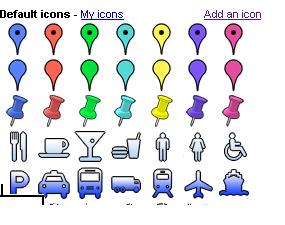
After getting your map, click on the placemark tool and drag it with out pressing the left side button of the mouse and put it exactly on the point of map which you want to describe about. After placing the mark click on it to open 'info window'. There you can enter the title of the appropriate place and a short description. After that click OK to save your work. If you want to delete the placemark, put the cursor on it and give a right click to get many options including delete. You can also change the style and color of the placemark by clicking on the right corner of the info window where you have many options.
Adding and Editing Lines
To add a line in your map, click on the appropriate tool which is next to place mark icon and move it to the appropriate location and click to start the line. Click on the each part of the line you want to make on the map and give double click to finish the line. After finishing the line click on it to open 'info window'. There you can enter the title of the appropriate place and a short description. After that click OK to save your work. If you want to delete the line, put the cursor on it and give a right click to get many options including delete. You can also change style and color of the line by clicking on the right corner of the info window where you can get many options.
Adding and Editing Shapes
To add a shape in your map, click on the appropriate tool which is next to line icon and move it to the appropriate location and add it. After adding the shape click on it to open 'info window'. There you can enter the title of the appropriate place and a short description. After that click OK to save your work. If you want to delete the shape, put the cursor on it and give a right click to get many options including delete. You can also change style and color and opacity of the shape by clicking on the right corner of the info window where you can get many options.
Adding Rich Text and HTML descriptions
When you start to enter the title and description of a particular place after clicking on the place mark or line or shape, you will get three options of editing such as Plain text,Rich Text and HTML descriptions. You can change the color, font and style of the text by selecting Rich text. You can enter HTML descriptions by selecting add HTML. However some HTML codes will be stipped off if they are found unsafe.
Getting directions
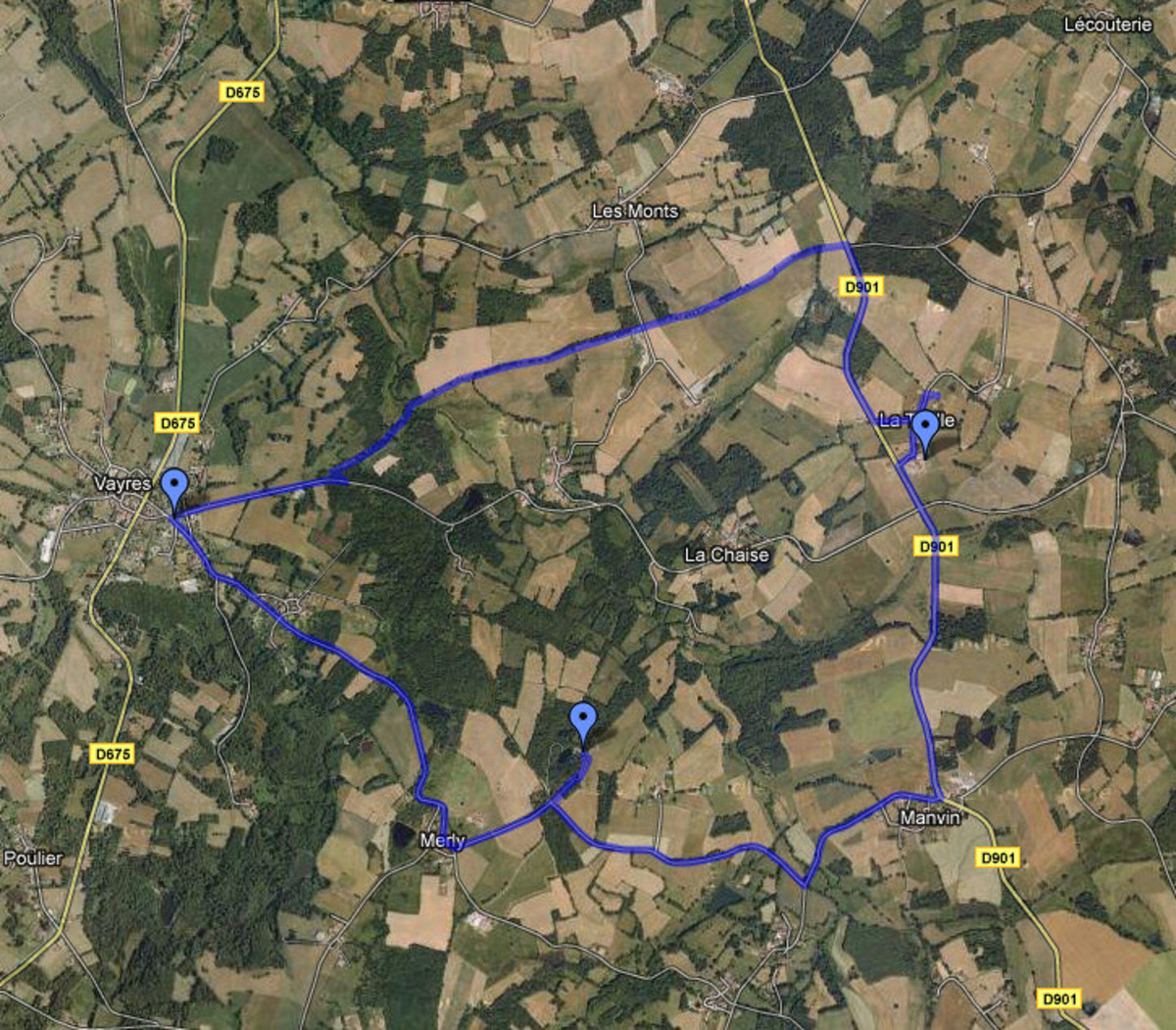
Depending upon your location you can get directions from one location to another.Usually the directions will appear in blue lines. To get directions for your map do any one of the following. In search field enter the name of locations as follows from:x, to:y. Here x and y are the names of different locations. Secondly click 'get directions' and enter starting and ending locations and click. You can also get directions by right clicking on the map.
Adding Photos to your Maps
You can also add your photos to your maps as long as they are hosted online. Please use a service such as Google picasaweb to add your photos online. To add photos to your maps click an appropriate place mark and then rich text option in it. Select the photo icon which one is at the right end and click it to enter the url of the photo. Now click OK to save your photo.
Adding Videos to your Maps
To add videos, click an appropriate placemark and info window appears. Click edit and then edit HTML option. Find the video that you want on You Tube or Google Video. Copy the snippet of code that lets you embed the video into a website or blog. Paste the code in the description field of the placemark and click OK to save your change.
The Locations that can be added to your Maps
You may be living in a village nearby an important town of your country. If you are sure about the correct location of your village, which you could see through the Google Map, you can add it to your map account by clicking 'create a new map' to start editing and saving. In a few minutes you can make any one in the world to see your edited map and your description about the location. But one important thing to note is that searcher should use the correct spelling and title which you used to add the placemark. You can also mark important points of your city or town such as parks, temples,schools, churches and etc., Besides these you can also add your business location and details in your maps.If you are doing a real estate business, you can put full details of your business with the map. You can also add your other business locations in your map. It is better to avoid the marking of your own house and properties.
Saving search results to your map
You can search for address and business and save items from your search results to your map. For this you have to do following things 1. Open a Map. 2. Search for the business or address that you want to add. 3. Click on the item you want to save. Click save to my maps and finish the work.
Sharing Your Maps with Friends And Public
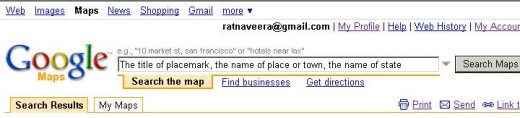
If you want to see your edited placemark in the public view, you have to enter the following things in the search field.
1. The title of the placemark that you have entered
2. The name of your favorite place or town or city.
3. The name of your State and also of the country ( if needed )
For eg. If you enter ' Shri Meenakshi Amman Temple, Madurai, Tamil Nadu ' in your search field you will get the map of Madurai, Tamil Nadu as well as Meenakshi Amman Temple the central attraction of the city.
If you want to share your map experiences personally you can send the url of the map that appears when you click the link 'link to this page'. You can also post your personalized map in your blog, as I have done in my blog titled ratnaveera maps, by getting the embedded codes by clicking on ' link to this page and then on 'customize and preview embedded map'. The preview of the map will appear in a new window where you can choose the size of the map. Here you have to adjust your desired and appropriate zoom level of the map which will appear in your blog. Then you need to copy the codes below the map to paste in your blog and publish.