Optimizing Google Chrome Tips, Hacks And Tweaks


Google Chrome is the browser which combines a minimal design with sophisticated technology to make the web faster, safer and easier. Time to time, I used several browsers like Internet Explore, Mozilla, Opera, FireFox and at last Google Chrome. Google Chrome offers a great no of flexibility such as searching form the address bar, thumbnails of the top sites, private browsing through incognito window. If you think all these things all together, then you also understand that Google Chrome is the best for all these types of issues and flexibilities. In this page, I want to describe some of the greatest tips, hacks and tweaks of Google Chrome. By following these tips, hacks and tweaks, you can browse privately, can open the recent closed tabs, can search through Google or Yahoo or other search engine, can set browser's home page, can increase text space, can jump different tabs, can clean browsing history according to you own wish, can download, can bookmark, can jump the history page, can edit the web pages, can create the application shortcuts, can find out the installed plug-ins and can know many shortcuts also etc. So, just keep reading and know some of the best tips, hacks and tweaks ...
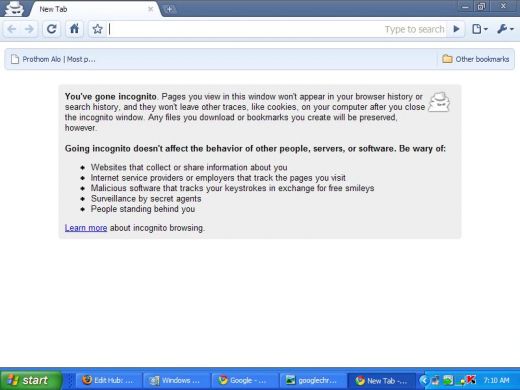
Using incognito window
Incognito window offers you to surf on a PC without leaving behind any digital footprints. If you use it, all of your surfing will be hidden and no one can trace your surfing to Internet world. To open and use incognito window, use Ctrl + Shift + N keys all together and use incognito window of Google Chrome.
Link opening in incognito window
You can open any link in an incognito window. For this you have to right-click the link and select Open link in incognito window.
Opening recent browser tabs
Sometimes you may mistakenly close your browser tab during browsing time. But don't worry. By using Ctrl + Shift + T all together, you can easily open the recent browser tabs again and can find your recent pages.
Custom search through Google Chrome
Default search of Google Chrome is Google. But you can change or edit
the search options. For changing default search engine through other
search engine like yahoo, AOL, ask etc. or any other things, just right
click inside the address bar and select Edit search engines...
From these lists, select anyone for your default search engine. After
doing all of these, write your own thing in the address bar and hit
enter and you will be directed to the search page.
Loading Chorme's home page
By using Alt + Home all together you can load Google Chrome home page. This also enables thumbnails of your most visited sites shown in the active tabbed window.
Increasing space in a text area
You can easily increase more space in a textarea or re-size the text area by dragging the lower right corner of the text area.
Jumping to different opened tabs
You can switch the currently opened tabs by using Ctrl + 1, Ctrl + 2, Ctrl + 3 ... Ctrl + 9. Ctrl + 1 means the first tab, Ctrl+2 means the second tab and so on. Ctrl+9 takes you to the last tab. In this way, you can easily switch the tabs easily.
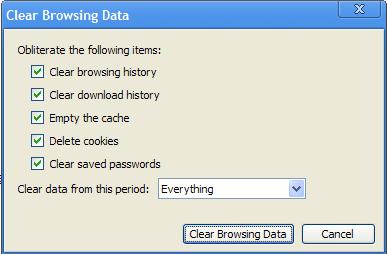
Clearing history
Click on Customize and control Google Chrome (it is at the top right corner of your browser window) and select Clear browsing data to clean the history according to your own wish.
Bringing up history page
To bring the history page quickly, use Ctrl + H. Here, you can easily view the group-wise history. You may also erase the history also.
Jumping the Downloads page
By pressing Ctrl + J, you can jump to the Download page.
Flexibility of downloading and saving
By using Google Chrome, you can easily download files and you can easily copy that to the desktop or to any other specific folder by using drag and drop directly.
Bookmarks enabling and hiding
By using Ctrl+B, you can easily enable Chrome's bookmarks bar. If you press Ctrl+B again, the bookmark bar will be automatically disabled.
Easy bookmarking
You can easily bookmark a site by clicking the star icon at the left of the address bar. Now, select a folder to add it to or arrange and save your bookmark according to your own wish.
Loading Chrome's home page and most visited pages
You can load Google Chrome's home page, including the thumbnails of mostly visited sites by pressing Alt + Home.
Viewing installed plug-ins
Different purposes, you download and install several types of plugins. To see what plugins are installed on your computer, just type about:plugins into the address window.Now you will see all the installed plugins in shortly.
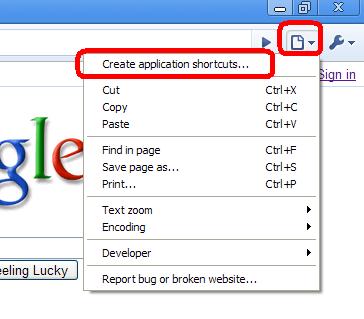
Creating application shortcuts
At the top right corner, there is an option named as Control the current page. Click on it and there is an option named as Create application shortcuts... Now, decide where you want to place the desired shortcut. This option works for Google apps, Google Calendar, Documents, Windows live hotmail etc.
Web page editing
To edit any web page just right-click a page and select inspect element. Then you can edit HTML source code and hit Enter key to view the changes.
Math calculations and unit conversions
You can use Google calculator by typing the expressions in the Google Chrome's omnibox or address bar. Moreover, you can convert one unit to other unit easily by following the above ways.
Link dragging & dropping to open a new tab
You can drag a link onto a tab to open it in that tab. Or drop the link in between the two tabs to open a new tab in that position.
Switching different opened tabs
For jumping or switching to different open tabs, use Control + 1, Control + 2, Control + 3, etc. Control + 9 takes you to the last tab.
Cycling through opened tabs
This is a great option of Chrome. By using Control + Tab, lets you cycle through your open tabs in order. Really, it's a handy way to switch different tabs in cycle order.
To cycle through your tabs in the opposite order, use Control + Shift + Tab.
Cleaning an item form the downloading page
To clear an item from Downloads page, just right-click an entry or the entry you want to remove and select Remove. That's al to clean an item from the downloading page.
Deleting cookies
You can easily cookies form the browser. To delete cookies, go to Tools > Options > Under the Hood. Now, scroll down to the Security section, and click Show cookies.Later you can click Remove all or remove individual cookies.
Default browsing page settings
For making Google Chrome as default browser, click the Tools button. Then select Options, click the Basics tab and then click the Make Google Chrome my default browser button.And thats's all to open a CD.
Editing web page
To edit any web page or pages - right-click a page. Now select Inspect element icon. Now edit the HTML source code and hit Return to view the changes.
Google Chrome Task manager.
Shift + Esc is a quicker way to bring up the Google Chrome Task manager. So, use Shift + Esc to access there.
Easter egg of Google
If your computer's operating system is Windows XP and if you type about:internets in your Google Chrome's address bar, you will see a tribute to United States Senator Ted Stevens take on the Internet.
More Topics on Google Chrome
Some of the common useful shortcuts
At last, some of the common shortcuts are presented below:
- Ctrl+N : To open a new window
- Ctrl+T : To open a new tab in the current window
- Ctrl+W or Ctrl+F4 : To close current tab or pop-up
- Ctrl+P : To print the current open page
- Ctrl+S : To save the current open page
- F5 : To reload the current page
- Ctrl+F5 or Shift+F5 : To reload current page, ignoring the cached contents
© Written by rancidTaste
If you are enjoyed this post, please consider to leave a comment at the comment section of this page or Subscribe to rancidTaste's RSS feed to get new pages which will be delivered to your feed reader. You can also read more hubs by rancidTaste.