File sharing between two computers: How to connect two computers for file sharing?

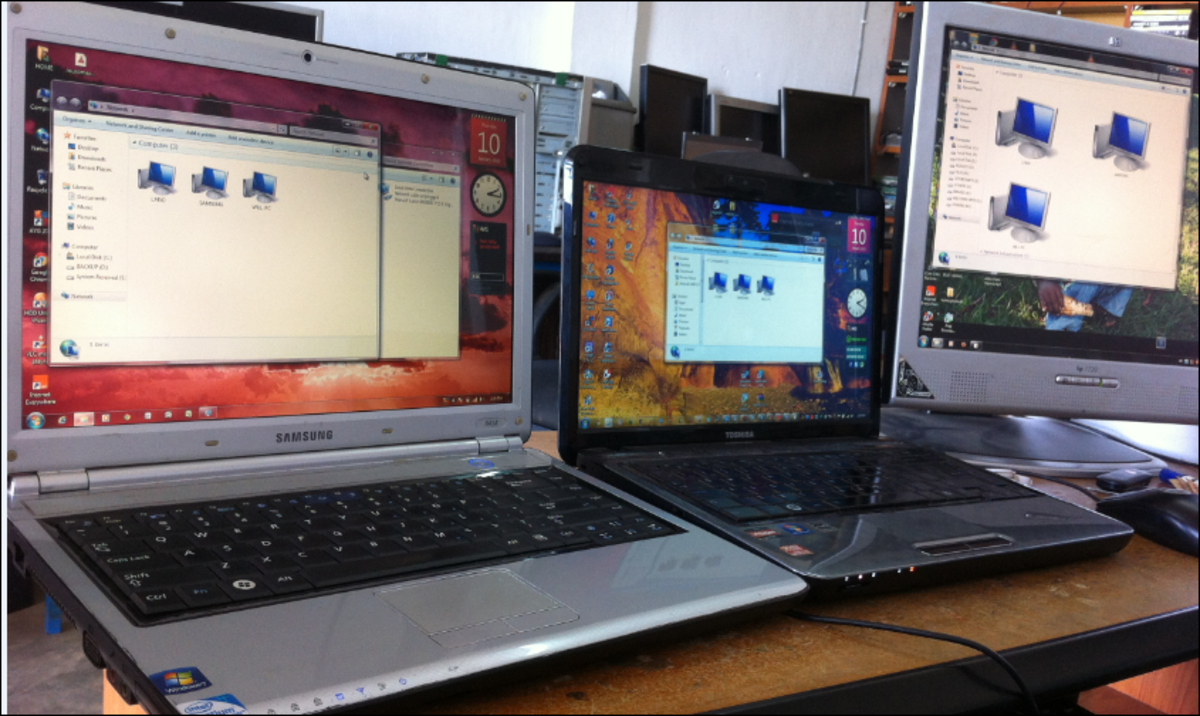
Sometimes you need document sharing or safe file sharing between two computers. For example, I sometimes need file or document sharing between my laptop pc and desktop computer. I think you also face this type of situation. There are several easy solutions for document sharing or safe file sharing between your laptop pc and desktop computer or between two desktops or between two laptop pcs. This page contains the information about document sharing or file sharing or safe file sharing between laptop pcs or desktops or both. You can do safe file sharing between two computes by following any of the method:
- Safe file sharing using a switch between two computers
- Safe file sharing using a crossover cable between two computers
Both the methods are discussed below.
Safe file sharing using a switch between two computers
Safe file sharing can be done easily by using a switch. For safe file sharing using a switch, you need a switch and two cables to connect those laptop pc or desktops. Follow the following steps for safe file sharing:
Step 1: Connecting the computers to the switch
- Plug-in LAN cables both the computers to the switch. You have to use straight through cable to connect the computer and the switch.
Step 2: IP configuration for both the computers
- Click on Start menu.
- Then click on Control Panel.
- Form the "Control Panel" window double-click on Network Connections. You will see Local Area Connection.
- Double click on "Local Area Connection" and you will see Local Area Connection Status pop-up window will be appeared.
- Click on the Properties button.
- From the Local Area Connection Properties window, double click on Internet Protocol(TCP/IP).
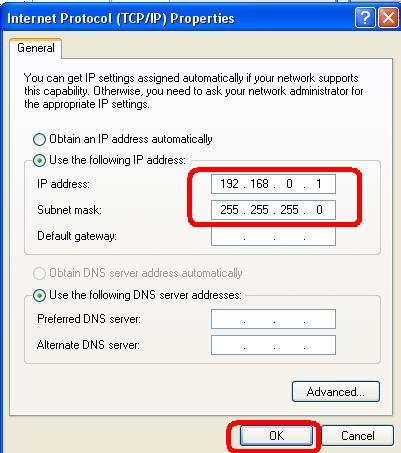
- Now set the IP address as 192.168.0.1 to one computer and 192.168.0.2 to other computer. Set the default Subnet mask as 255.255.255.0 for both the computers.
- Now, click on OK button.
Step 3: Network name configuration
Now, you have to set the network name. To do this follow the following steps (You have to do the following steps for both of the computers):
- Right-click on My Computer.
- Click on Properties.
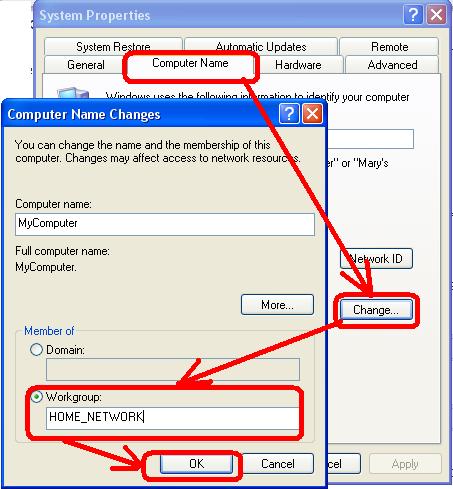
- Click on Computer Name tab.
- Now click on Change button.
- Put a name in the Workgroup field. For example, we name our workgroup as Home_Network.
- Now, click on OK button.
- You need to restart your computer after changing the workgroup name.
Step 4: Start safe file sharing
That's all. Now, try to share files between these two computers. I think you have done well.
Safe file sharing using a crossover cable between two computers
You can also connect between two computers easily using crossover cable. A crossover cable is a networking cable to connect two computers for file sharing between two computers. Crossover cable is available to all computer shops. It's very easy to file sharing using a crossover cable. In the following sections you will learn how to share files using a crossover cable by connecting two computers:
Step 1: Connecting computers by using crossover cable
- Take a crossover cable and connect the computers by using that crossover cable.
Step 2: IP configuration of the computers
- Click on Start menu.
- Then click on Control Panel.
- Form the "Control Panel" window double-click on Network Connections. You will see Local Area Connection.
- Double click on "Local Area Connection" and you will see Local Area Connection Status pop-up window will be appeared.
- Click on the Properties button.
- From the Local Area Connection Properties window, double click on Internet Protocol(TCP/IP).
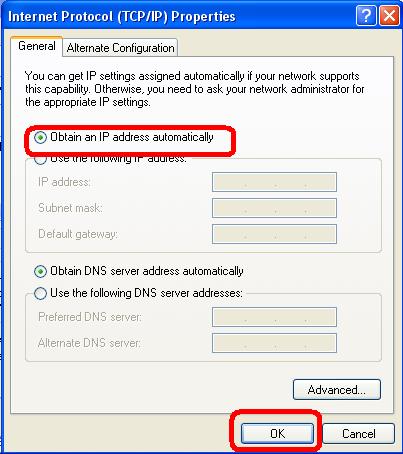
- Click on Obtain the IP address automatically.
- Now, click on OK button.
Step 3: Start safe file sharing
That's all. Both the computes will be connected automatically. Now, start secure file sharing between the computers.
By following any of the above method, document sharing or safe file sharing can easily be accomplished. You can use these methods for document sharing or safe file sharing between laptop pc and desktop or between two desktops or between two laptop pcs. I mentioned all the steps in details step by step. I think you are successful for document sharing or safe file sharing. If you face any difficulties for document sharing or safe file sharing, please tell me in the comment section. I will try to solve your problem.
© Written by rancidTaste