Find and Delete Broken Shortcuts Automatically:How to Remove all the Dead Broken Shortcuts in Windows XP,Vista,7,2003.

68When you install or uninstall several programs, then many shortcuts may create. Most often it is seen that you uninstall several programs long time ago but there still exist some unknown or known broken shortcuts. It's hard to find out all the broken shortcuts. But the great news is that you don't need to find or delete those dead shortcuts. Microsoft offers a small utility chklnks.exe which is able to find all the dead shortcuts and remove them automatically. This small utility is released with Windows 2003 server. But it works all the Windows operating system. This small utility can be used in Windows XP, Windows Vista, Windows 7, Windows 2000, Windows 2000 server, Windows 2003 server, Windows 2008 server. By using this small utility you can easily find all the dead shortcuts automatically and remove them forever. This page contains the information related to this great utility.
Steps to find and remove all the dead broken shortcuts
chklnks.exe is a small, simple but very strong utility which is able to find all the dead or broken shortcuts easily. Later, if you wish you can deleted all of them or some of them. I run chklnks.exe for several times and in several computers and found that it really detects many shortcuts form those computer. Now, lets see how tho use it...
Before using chklnks.exe utility, you must have to download this great software. You can download this great utility software from the following link:
After downloading form the above link, you will find a rar file and extract it. If you using Windows XP or Vista or Windows 7, just double click on it and you will soon access it. There you will find a file named as chklinks.exe.
Double-click the file chklinks.exe to run it. Very soon a window will be opened named as Link Check Wizard. When it starts running, it looks like the following figure:
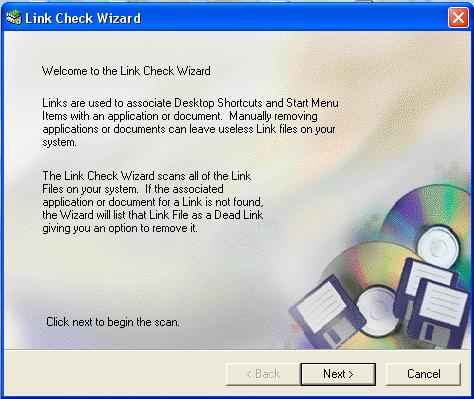
From the Link Check Wizard window, click on Next button. Now, it starts checking all the dead links. Please wait for some time, until it scans for all the dead links.
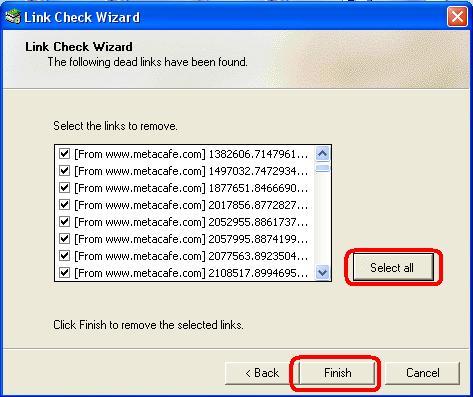
After finding all the dead links, you have to select the dead links which you want to delete. You may select all thed dead shortcuts by single clinking on the button Select All. It's your side, to select the broken shortcuts. After selecting all teh broken shortcuts, click on Finish button to remove all the dead shortcuts or dead links.
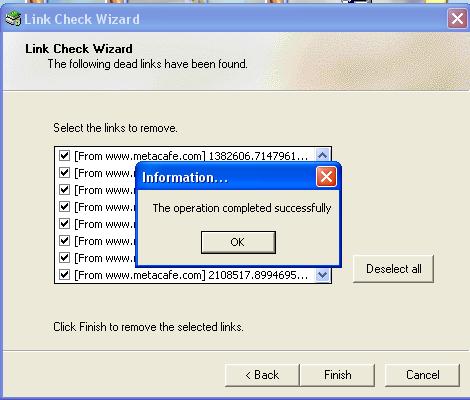
When chklnks.exe removes all the dead links then it shows a message The operation completed successfully.
That's all. By using the above small utility program, you can easily delete all the dead shortcuts or dead links from your Windows computer.
© Written by rancidTaste
If you are enjoyed this post, you may read more hubs by rancidTaste.

rancidTaste's Recent Pages
- New Interface of Google Search: Try Google Search's New Interface Now!!
Google Search is always favourite to all from the starting of Google search. - 4 days ago
- Fresh and unique contents for Search Engine Optimization: The secret talks of SEO and generating site contents
Millions of websites with billions of webpages are available in the cyberspace. - 3 weeks ago
- Free malware protection with Portable Anti Trojan Elite: The best malware blocker and malware remover for your compter
Recently malware is spreading very rapidly. - 3 weeks ago
- rundll32.exe - Application Error â The memory could not be "read". Click on OK to terminate the program.
Windows operating system is corrupted due to several virus infections. - 4 weeks ago
- PPV or PPC?: "Pay Per View or Pay Per Click?" - Which One is Better?
Pay per view (PPV) and pay per click (PPC) are two types of marketing advertising solutions which is used by the advertisers to reach targeted group of visitors. - 4 weeks ago
- Make Good Money with Good Articles and Get Quick Cash
Before going to the main content, I want to ask you tow question? - 4 weeks ago
- Hot Secrets Behind Good Articles: How and Why Good Writers Always Write Good Articles?
Before writing to Hubpages, I have no idea about good articles. - 4 weeks ago
- Backlinks And Backlinking: Search Engine Optimization and the Importance of Backlinks And Backlinking
If you do a small research on search engine optimization or high search engine ranking, then you must come across the term backlinks or backlinking. - 5 weeks ago
blog's Recent Pages
- Hover Peek-a-boo Blogger Navbar: How to Hide Blogger Navbar and Make It Visible When You Place the Mouse Cursor on It?
The Blogger Navbar appears by default at the top of every Blogger-powered blog. - 6 months ago
- Remove or Hide the Blogger Navbar: How to Remove or Hide Blogger Navbar?
The Blogger Navbar appears by default at the top of every Blogger-powered blog. - 6 months ago
- Change the Color of Blogger Navbar: How to Change the Color of Blogger Navbar?
The Blogger Navbar appears by default at the top of every Blogger-powered blog. - 6 months ago
- Blogger Navbar: What Is Blogger Navbar And It's Advantages and Disadvantages
Blogger Navbar appears at the top of every blogger by default. - 6 months ago
- Adding "Top of Page" Icon Link: How to Add "Top of Page" Icon Link on Your Blog or Website
Many of the websites or blogs posts have a small text or image floating at the bottom-right or bottom-left or bottom-center. - 6 months ago
- Adding "Top of Page" Text Link: How to Add "Top of Page" Text Link on Your Blog or Website
Many of the websites or blogs posts have a small text or image floating at the bottom-right or bottom-left or bottom-center. - 6 months ago
- Adding Signature to Blogger Posts: How to Add a Signature under Your Blogger Posts?
You can easily add your own custom signature to your blogger posts. - 6 months ago
- Blogger Falling Rectangles : How to Add Falling Rectangles to Blogger?
You can add falling objects like small rectangles, circles, stars etc. - 6 months ago
PrintShare it! — Rate it: up down flag this hub


Lgali says:
6 months ago
very useful article