- HubPages»
- Technology»
- Internet & the Web»
- Viruses, Spyware & Internet Security
How Do I Get Rid of The Trojan Horse Virus: A DIY Trojan Remover's Guide

How do I get rid of the Trojan horse virus
Basically I am aware of 4 ways everyone can use to get rid of the trojan horse virus.
- Buy a new computer (you won't believe me but it works!).
- Call a techie and (s)he will repair your computer for a beer.
- Get a bunch of commercial anti-malware programs and spend a day running endless scans. Usually it works though costs a small fortune.
- Read this hub, download recommended tools and you'll find the right answer to the question "how do I get rid of the trojan horse virus?".
As you may have guessed, I'm going to concentrate on #4.
#1: MS MSRT
Obviously it makes sense to start the fight with Trojans using Microsoft Malicious Software Removal Tool. If your PC is set to receive Automatic Updates, then most probably the Tool is there and ready to be used.
- Click Start-->Run
- Type in mrt and click OK.
Ideally the Tool should start, but if you experience an error then probably you will have to download it manually.
How to download the Microsoft Malicious Software Removal Tool.
MSRT is over 11 Megabytes in size.
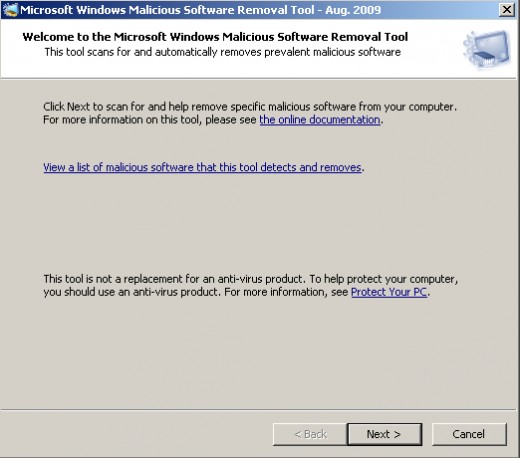
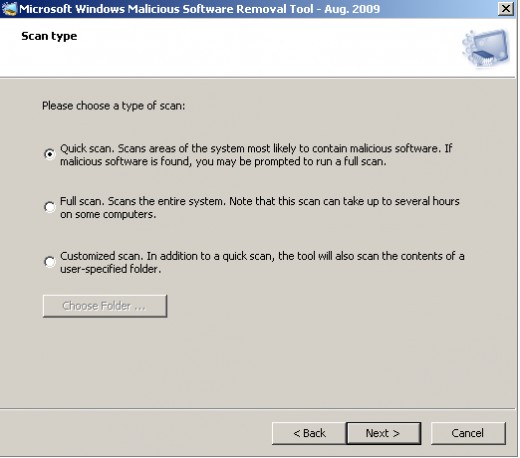
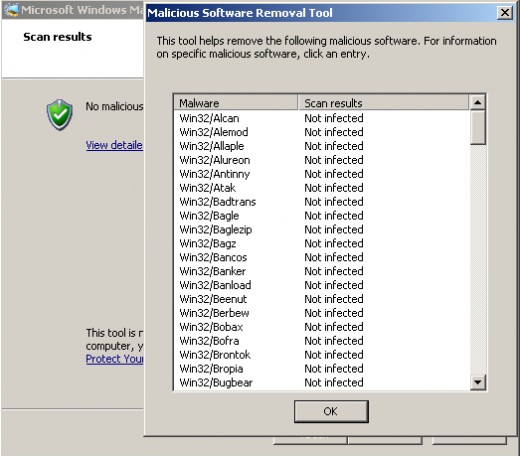
Obviously you need to click 'Next" to proceed. You will be brought to Types of Scan. Usually choosing Quick Scan is recommended because the Tool knows where to look for Trojan Horse viruses. Quick Scan takes several minutes to complete. MSRT will provide a report after scan is complete.
Microsoft tool sometimes is very helpful. For example, it can detect and remove Conficker worm (also known as Downup and Kido) and repair Internet connection settings. But it doesn't remove hidden rootkits, so it's important to run a different tool after MSRT scan.
#2: DrWeb CureIt
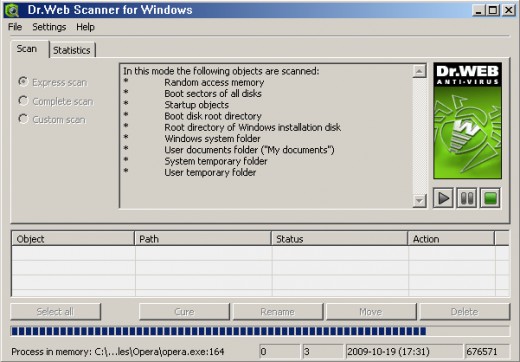
DrWeb CureIt is a free scanner from the makers of DrWeb Antivirus. CureIt comes with classic Windows interface and is extremely easy to use. Upon downloading a 18 megs file you will have to execute the program pr99pv2x.exe. It will display to options: Update and Run a scan. If you download CureIt from the DrWeb's website, your copy is the latest one and there's no need to click "Update" button. Press "Scan" instead and you will be informed about scanner's routine. Click 'OK' to proceed. The Express scan will begin automatically.
DrWeb CureIt will check system memory, boot sectors, startup environment, Windows system folder and other common places where trojan horse virii like to seek a shelter.
Express scan can be paused or stopped manually. Additionally, there's an option to switch to Complete scan (will check all files) or Custom scan (will check user-specified folders and drives).
Found pieces of malware can be deleted using the Object box.
Download DrWeb CureIt:
http://www.freedrweb.com/cureit/?lng=en
#3: Sophos Anti-Rootkit
Sophos has been kind enough to release it's Anti-Rootkit tool. Rootkits are terribly nasty things when it comes to compromising computer security. Hard to detect and even harder to remove, they remain unnoticed on otherwise healthy computers. Sometimes removal of a particularly stubborn malware turns into an endless battle. You perform system scan, remove found pieces of malware, restart Windows resting assured it's clean from now on, and suddenly notice same pieces of malware present on next scan! Rootkits can be blamed for restoring deleted infections.
Although software listed above is very helpful in cleaning out nasty malware, it is not a bad idea to perform anti-rootkit scan as well.
Sophos Anti-Rootkit supports Windows NT/2000/XP/Vista/7, as well as Server platform, both 32-bit and 64-bit editions.
Download Sophos Anti-Rootkit (requires filling in a free registration form):
http://www.sophos.com/products/free-tools/sophos-anti-rootkit.html
(NOTE: interpreting scan results can be a tough task for inexperienced users. Please never remove items which functions you don't know! Consult someone savvy who will assist you in deleting rootkits but not system-critical files).
EMSISOFT anti-malware command-line scanner
While I firmly believe EMSISOFT shouldn't have discontinued the free version of a-squared anti-malware, I give them thumbs up for continued support of command-line anti-malware scanner.
All user-input is performed in a DOS-like black window, but below I will show you how easy it is!
A command-line scanner uses much less system resources than software with GUI. You can run it in Windows Safe Mode where few programs can be launched. In my humble opinion backed by years of experience, nothing beats a good ol' command-line scanner when it comes to fighting trojan viruses. You either win or lose. With CMD at hand, chances of winning are higher.
So go to EMSISOFT website and grab an 90 Megabytes archive:
http://www.emsisoft.com/en/software/cmd/
Once downloaded, unpack the file uzing WinRAR, 7-Zip or any other unzip software (if my memory serves me right, Windows has some sort of built-in unzipper as well). You should have a file and a folder now similar to those in the screenshot below.
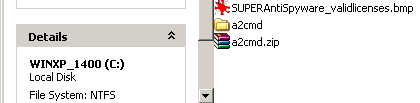
You can now delete a2cmd.zip folder.
Inside a2cmd folder you'll find many files, but you don't have to double-click a2cmd.exe in order to launch the program. It won't!
To launch this cool software, go to Windows Start button, click CMD (Window 7 users, type CMD in Search box to get the link), type in CMD and hit OK. XP users should run CMD under account with administrative privileges, Windows 7 users should open CMD with administrative privileges.
If you downloaded a2cmd.zip to C:\ drive (which I assume by default), follow this guide. If you unpacked the archive to another drive (say, D:\ or F:\), replace the letter with that of a drive where unzipped folder is located.
In CMD window, type in:
cd ..
(note a space after d and before two dots)
and hit Enter. Repeat this step until you're in the root of C:\ drive
Now type in:
cd a2cmd
(Note a space after d and before a)
Congrats, the difficult part is over! Now will shall launch the anti-malware scanner.
EMSISOFT offers 3 types of scan: QUICK, SMART and DEEP. For an infected computer, quick scan is of little help, so I suggest that you should go either for SMART or DEEP scan.
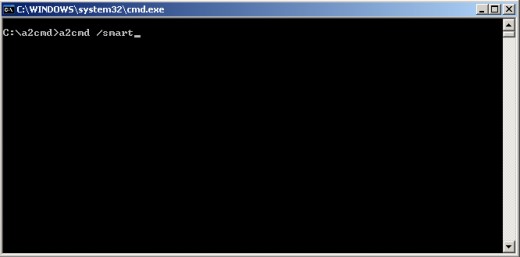
Type in:
a2cmd /smart
and hit Enter key.
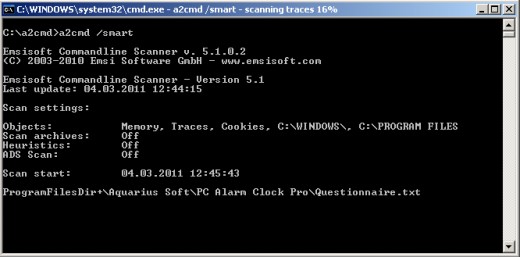
EMSISOFT will start a smart scan. The program's digital eyes will carefully inspect important folders. SMART scan is good and fast, however should it pick up trojans, follow with DEEP scan!
To use the scanner in DEEP mode, type in the following commands (leave a space after each slash).
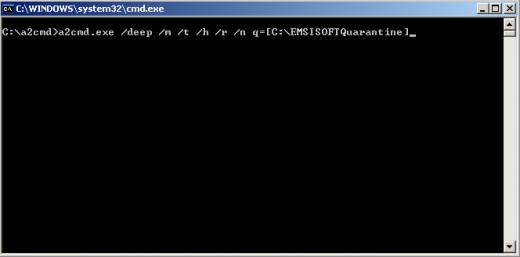
Note the /q= parameter. It specifies the location of a folder where all detected infections will be moved. I've named the folder EMSISOFTQuarantine and placed it on C:\ drive, but you're free to label the folder any way you like. Just type the label in ONE word, like I did in the example below.
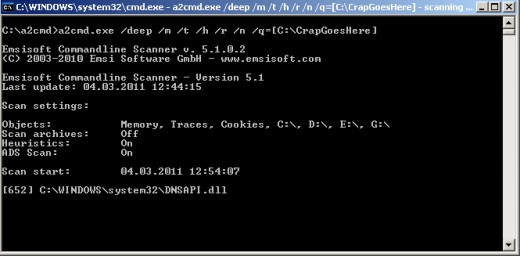
In this example, a deep scan will be performed with the following parameters. I've put the corresponding switch to the right of a given explanation.
- memory will be scanned (incl. all running processes) - /m switch
- program will look for Spyware traces - /t switch
- Heuristics scan for unknown Malware - /switch
- program will look for Alert Riskware - /r
- program will scan NTFS Alternate Data Streams - /n (makes scan longer but is worth it in case with Trojan viruses)
- this is where detected nasties will be put - /q=[C:\EMSISOFTQuarantine]
You decide what to do with that folder after it's filled up with malicious crap!
Every time you download a command-line scanner from EMSISOFT website you get an archive packed with latest signatures. But downloading a 90 Megs file each time can be time-consuming and bandwidth-exhausting. Is there a way to update the software?
Yes there is!
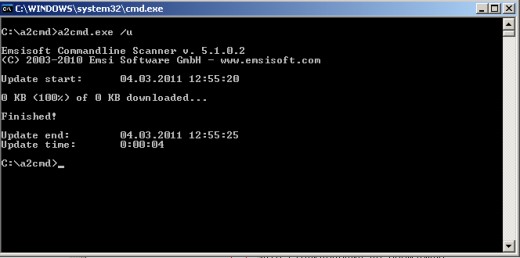
Use the Update switch /u to download latest signatures. EMSISOFT will put all downloaded data into its folder a2cmd, so all you have to do is to type in /u and hit Enter. Once finished, you can use the scanner resting assured it is bundled with up-to-date anti-malware definitions.
Isn't EMSISOFT generous enough? I bet you'll have hard time finding a similar tool with command-line interface for Windows platform that is free for private use.
SUPERAntiSpyware Online Safe Scan
SUPERAntiSpyware, just like most other security software makers, offer a free online scanner. Internet Explorer users can use the scanner right within the browser. Firefox addicts will have to download a file with .com extension (mine was SAS_2888.COM) and execute it like any other file by double-clicking.
SUPERAntiSpyware Online Safe Scan
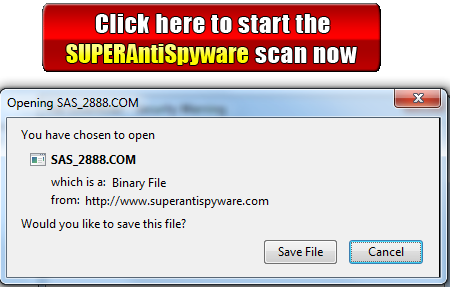
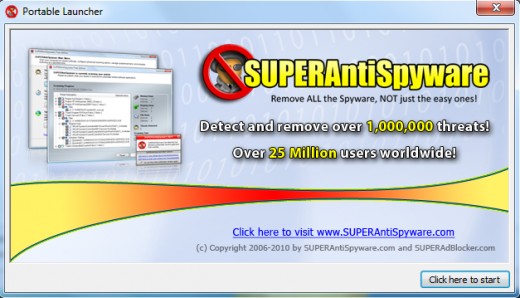
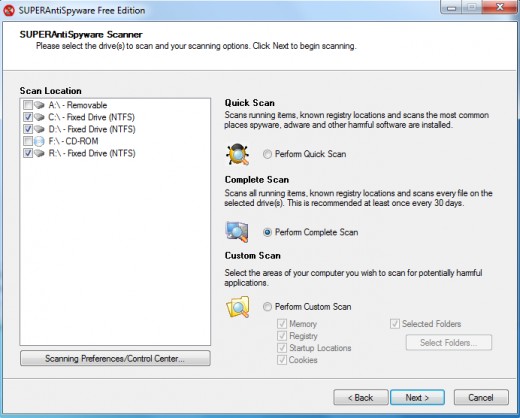
A .com file will launch a welcome screen. Use 'Click here to start' button to get to program options. Overall, this is very similar to SUPERAntiSpyware Free Edition, with main difference being that you don't have to go through installation procedure. You can even use Update feature here, too!
Click 'Scan your Computer...' to select drives or areas you want checked for malware presence. A Complete Scan is recommended for computers infected with various parasites.
Go to SUPERAntiSpyware Online Safe Scan:
http://www.superantispyware.com/onlinescan.html
Final notes
This is the simplest answer to the question "How do I get rid of a Trojan virus?" that comes to my mind. Just don't panic and don't hurry to spend your money on all kinds of super-duper Trojan Horse removers. Use all the tools recommended above and most likely your problem will get solved.