How to Setup Linksys Range Expander or extender

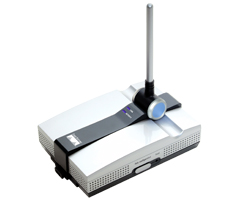
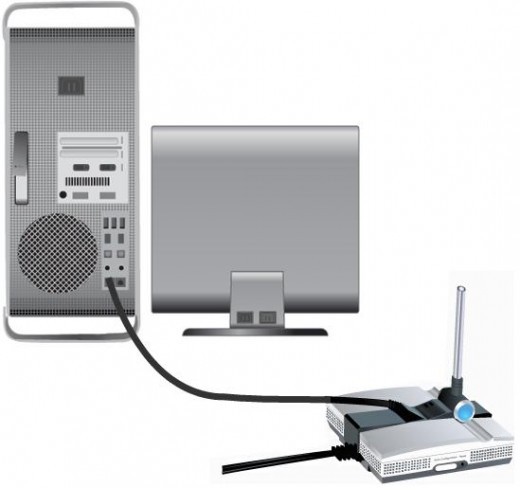
Linksys Range Expander is an excellent product that allows you to expand or extent the wireless signal of your linksys router or any other router. It has the capability to extend your signal to almost double the original range. Linksys Range Expander comes in three flavour
1) Version 1
2) Version 2
3) Version 3
Version 1:
Linksys Range Expander version 1 is comparitively easy to configure. This Range Expander has one Active Light and One Link Light. Along with that it has an autoconfiguration button. This is the best feature available with Version 1 Range Expander.
Using Autoconfiguration:The WRE54G Range Expander has an Auto Configuration button on its side panel that allows the device to repeat the signal coming from an Access Point or Wireless Router that has the highest detected signal strength. When the Auto Configuration button is pressed, the WRE54G will automatically configure itself to the Service Set Identifier (SSID), of the Access Point or Wireless Router that it's repeating.
NOTE: The WRE54G's Auto Configuration feature will not work on security-enabled wireless networks and disabled SSID broadcast. If you wish to use the Auto Configuration feature, make sure wireless security is disabled on the Access Point or wireless router that you wish to connect with.
Steps:
1)Power on the range expander
2)Make sure the security is not enabled on the router.
3)Press the autoconfiguration button for 30secs while keeping the RangeExpander closer to the router.
4)Link and Activity light will glow in blue color.
5)If not try the same steps again.
For Secuirty enabled router:
Autoconfiguration option in Range Expander will not work if the router has been configured with Wireless Security. Here are the steps to follow.
1)Turn off you range expander.
2)Login to your wireless router get the wireless settings.
- Open IE type http://192.168.1.1 it will prompt for username and password.
- Type the username and password(Default Username:admin Password:admin)
- Once you are into Setup Page then click on Wirelss Tab
- Under Wireless Tab you will have Wireless security click on it.
- Make a note of all the wireless settings information
3) Turn off your router then turn on your RangeExpander.
- In your laptop or computer see for the wireless signal named LinksysRxxx with Maximum Signal.
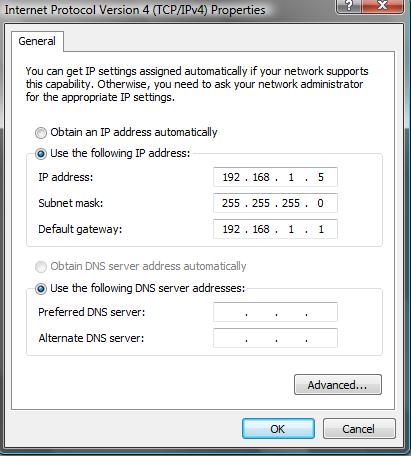
- Connect to your Singal then assign a static ip address. To assign an ip address follow the step below
- Go to Control Panel
- Click on NetworkandInternet
1)click on Networkandsharing centre
2)On the right side click on Manage Network Connection
3)Right Click on Wireless Network Connection Icon
4)Click on properties
5)Under the General Tab in the white window select Internet Protocol TCP IPV4
6)Click on properties
7)Select Use the following Ip address option
8)In the Ip address field type 192.168.1.5 SubnetMask 255.255.255.0 Click ok
Login to the RangeExpander and then match the wireless settings. To login into the Range Expander type.
http://192.168.1.240 then hit enter. It will prompt you for Username and Password(Default: admin/admin).
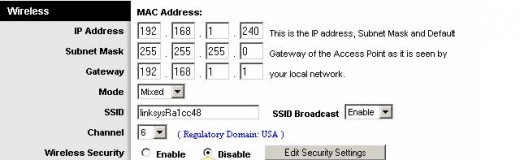
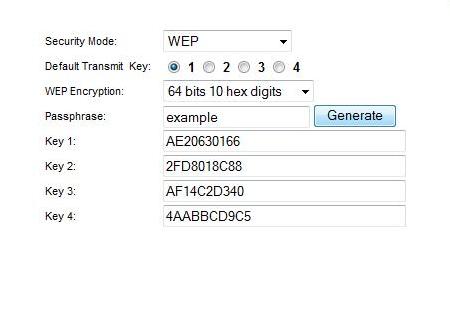
If wireless secuirty is enable on your wireless router. Then to fill in the wireless security information into the Range Expander. Make sure the Wireless security is enable Then Click on the button "Edit Secuirty Settings" Enter the wireless settings from your router into the range expander Then save the settings
Now your range expander is ready to use. Place the Range Expander at any convenient location but make sure you have those two blue lights. Because the blue lights are the indication for you to understand that your Range Expander is configured properly.
To learn something about wireless networking visit this link in CISCo website. Where you will have a video to learn about basics of Wireless Networking.