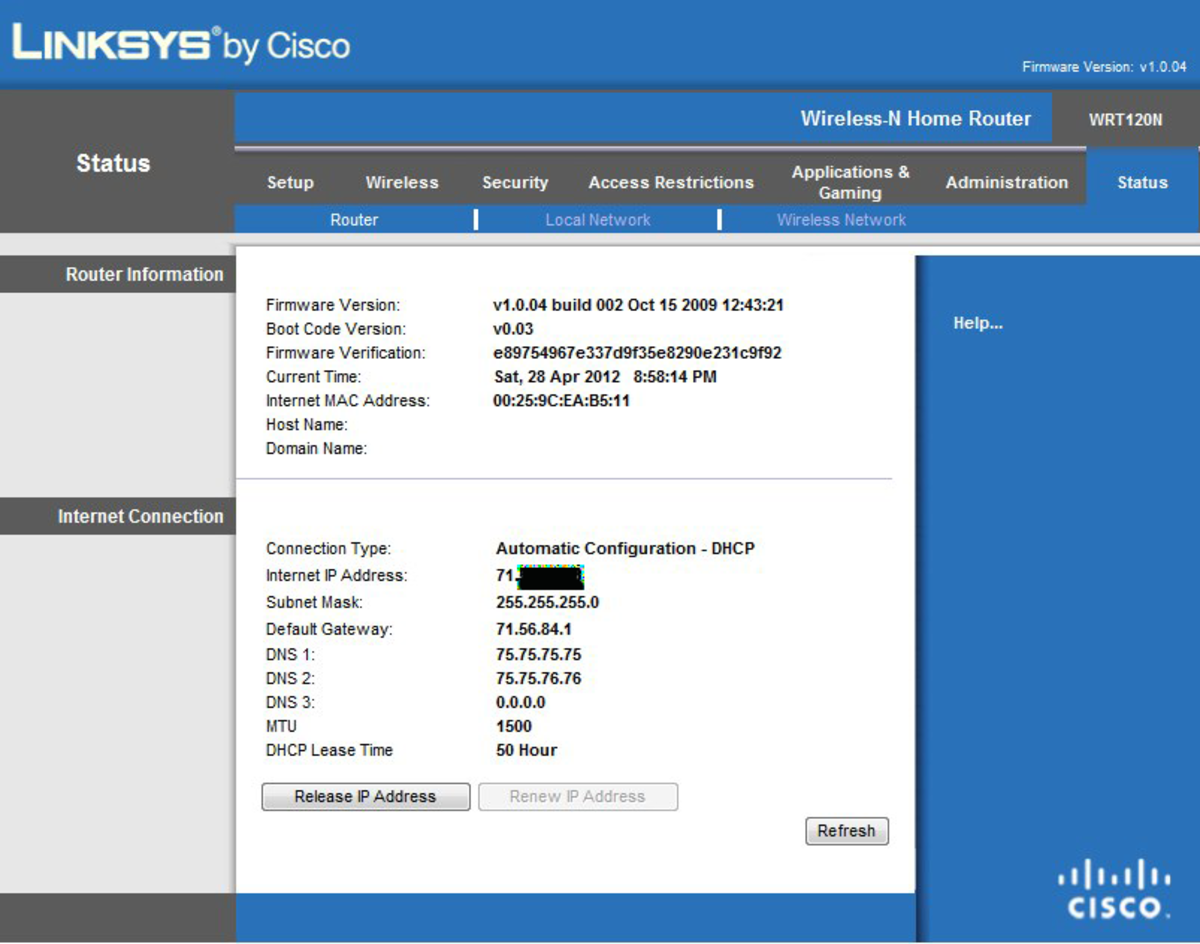
How to get the Network key from your Linksys Wireless Router

Check out my other tips for Linksys routers
- How to check the wireless setting of your Linksys router
Another helpful tip brought to you by Curly. Enjoy!
How to get the Network key from your Linksys Wireless Router
This is one of the most common problems that I usually encountered if your have a wireless network. You tend forget the password for the wireless or your password is no longer accepted. That's why I have decided to post helpful tips or step by step guides on how to help you with your problems with your network. I am not a Guru when it comes to networking but I sure know the basic things to get your network working. If you are a fan of my blog, you might see more post about common issues encountered on your network be it wired or wireless. I will soon post other guides for other brands, as of this time most of my post will be for Linksys products, but the solution is mostly applicable for other brands.
On this hub this will give you a step by step guide on how to check the encryption key or network key and others often refer to as network password.
If you can't remember or you don't know the password for your wireless network all you need to do is access the setup page of your Linksys router to check the network key from there. Here are the steps on how to check the network key of your wireless network;
Step 1. Access the setup page of the router.
To access the setup page of the router I recommend that you use the computer that is wired directly to the router. If you don't have a computer wired to temporarily wire your wireless computer to any of the Ethernet ports on the back of the router (labeled 1, 2, 3, and 4). Then open your router setup page of your router, to do this just open your browser (Internet Explorer or Firefox) and type in the address bar http://192.168.1.1/ (this is the default user name and password of the router) and click Go or hit Enter. It will ask you for a username and password, by default the router does not have a username so just leave that field blank and type "admin" for the password. If you changed the router password, then log in using your password to login to the router.
Note:
If you changed router's IP address use that address instead of the default IP address above.
Step 2. Check the Wireless Security.
Once you are in the router setup page, click on the Wireless Tab at the very top of the page. Once you are in the Wireless Tab, just right under the word Wireless you click the sub tab that Wireless Security. On this page you will see the Security Mode. If your security mode is set to WEP (64bit or 128 bit) you will have four sets of keys available. To known which key to use look for the Default Transmit (Tx) Key, If your default transmit key is set to 1, then you will use the key in Network key 1 to connect to the wireless network. Now if your Security mode is set to WPA (Personal/Pres-Shared Key/PSK) what's inside the WPA-shared key or Pass phrase / Personal Key box is the network key for your wireless network.
So now you know the network y that you need you will now be able to connect to your wireless network and get online wirelessly.
I hope this one has helped you dear readers and don't forget to share and rate this post.
Thank you viewing and reading!
Have a nice day!
This information is taken based from the user guide of your device. This is just to summarize everything and turn it into a step by step guide.
Related
How to Turn Your Windows Computer Into a Wi-Fi Router

The pros and cons of Wireless networks to business firms
How to Configure a D-Link Router? Step By Step Guide with Pictures for Beginners
CloudTrax Open-Mesh WiFi Cloud Network Meshing System
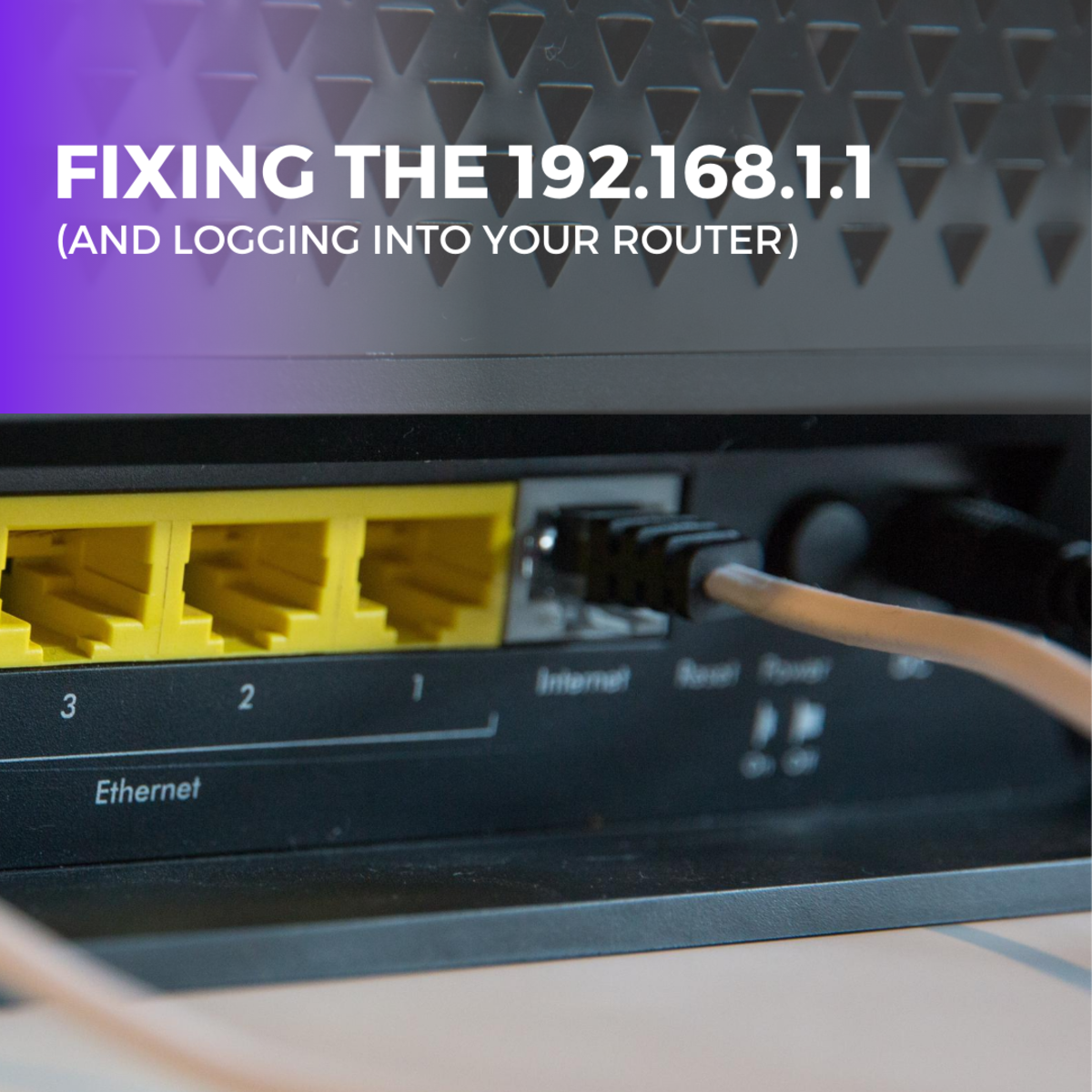
How to Fix the 192.168.1.1 and Get Logged Into Your Router