create your own

How to make a photo smaller with Microsoft PAINT

68
rate or flag this page

By Maren Morgan M-T

When reducing size is the only thing

I use some other software and on-line services when I really want to play around with a photo. However, when the absolutely, only problem is the size of the photo, I go with a pre-loaded program that came with my PC. It seems that many versions of Microsoft Windows provide software called Paint. This is not to be confused with Paint.NET. Just Paint.

The menu choices

Open the folder or file with the picture in it. Choose one photo and RIGHT-CLICK on it. This gives a drop-down menu. Choose "Open with..." (left-click) and you will get another drop-down menu. Choose "Paint" (left-click).

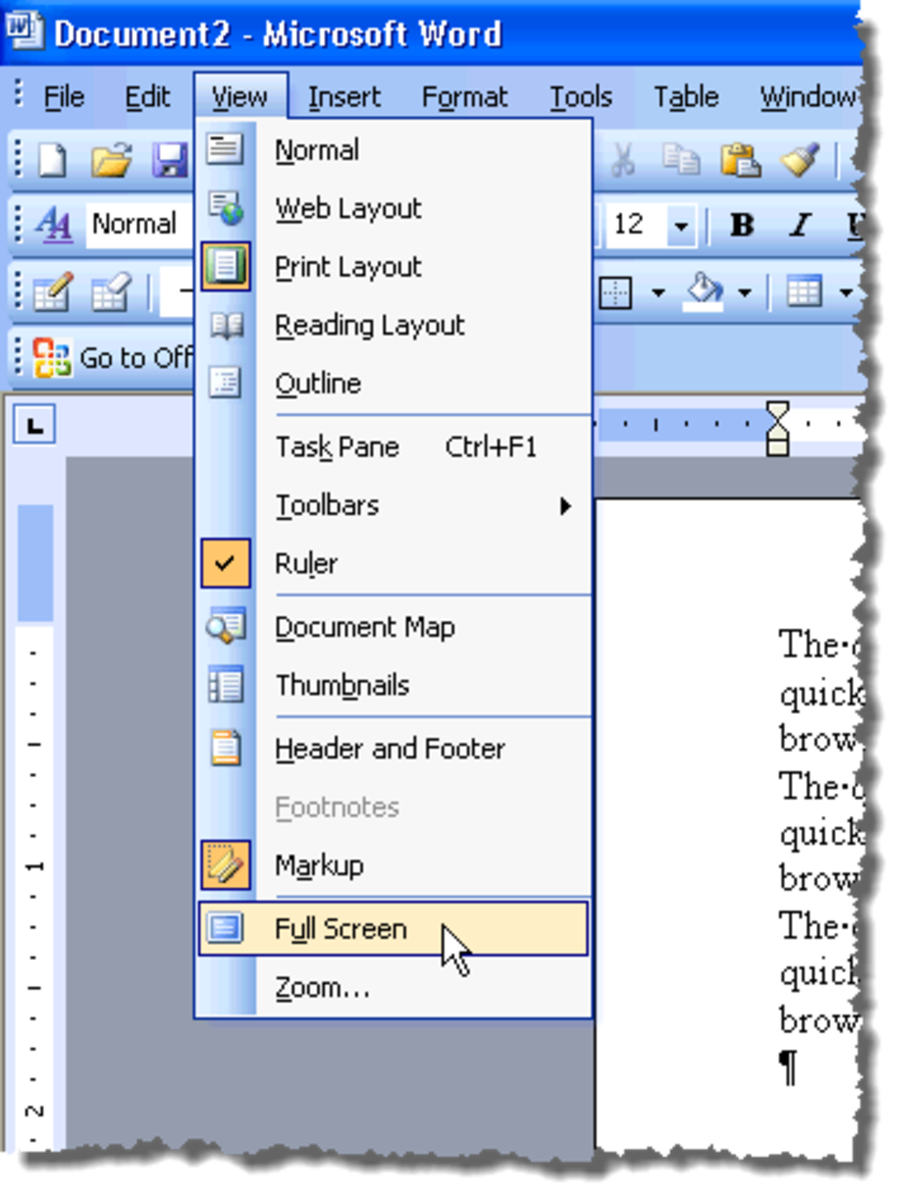
The photo appears in the Paint screen. Across top menu bar, click on "Image." Drop-down menu -> choose "Resize/Skew." This gives you a dropped box. In the top half of the box it says Resize. That is the only area you use. The default settings are Horizontal 100% and Vertical 100%. Change each to 25% and click "OK."


Save your new work

That's almost it. You need to save your hard work, either replacing the original file or making a new name so that you have both versions of the picture. Within Paint, left-click on "File." This gives a drop-down menu.

To do replacing, click on "Save." You will get a box informing you that a file with that name already exists; do you want to replace it? Choose "OK."

To have both versions, click on "Save as..." You will be given a box with a horizontal bar for the new name. Type it in and then Click "OK."

Good luck.

Adobe Audition 3 Upgrade Adobe Audition 3 Upgrade
Price: $95.00
List Price: $99.00
Adobe Photoshop CS Upgrade (Windows) Adobe Photoshop CS Upgrade (Windows)
Price: $449.00
List Price: $169.99
Adobe Photoshop Lightroom 1.0 (Win/Mac) [OLD VERSION] Adobe Photoshop Lightroom 1.0 (Win/Mac) [OLD VERSION]
Price: $239.00
List Price: $299.99

Copyright 2008 Maren E. Morgan-ThomsonĀ 

Comments

RSS for comments on this Hub

Zsuzsy Bee profile image

Zsuzsy Bee  says:
2 years ago

Thanks this is good to know. I'm just getting into this "Techno stuff" as my daughter is gone of to college. Now I have to figure these things out on my own...better said with great help like your hub...After I master this don't think I'm not going to show off to my daughter...ha

thanks again great hub regards Zsuzsy

Maren Morgan M-T profile image

Maren Morgan M-T  says:
2 years ago

Thanks, Zsuzsy Bee! This technology stuff drives me nuts, too. And to know that in this age of Information explosion that we will all be dealing with new formats for music, images, television, etc.. every five years or so...I figure I should try to be ten years behind instead of twenty! LOL.

Bel  says:
7 months ago

Thank you so very much for showing how to resize a photo using Paint. I downloaded a resizing program but it made it too small. This way I have control over how big it is.

Best wishes

Henry  says:
6 months ago

Thank you for the valuable informmation on how to resize a photo. Sometimes what we are looking for is righht under our nose withhout even knowing it.

Regards,

Sahar  says:
3 months ago

THANK U SOOO MUCH... I SEARCHED EVERYWHERE FOR THIS AND FINALLY ONE THAT WORKS!!!!!!!THANKS AGAIN!

Adam  says:
3 months ago

I have hundres of pictures that i moved from my camera to my computer. When i open them with PAINT they are huge. How do i resize ALL of them at the same time? Going through them individually will take forever.

Submit a Comment

Members and Guests

Sign in or sign up and post using a hubpages account.


optional


  • No HTML is allowed in comments, but URLs will be hyperlinked
  • Comments are not for promoting your hubs or other sites

working