How to save your folders and bookmarks on the Google Chrome toolbar before you lose them

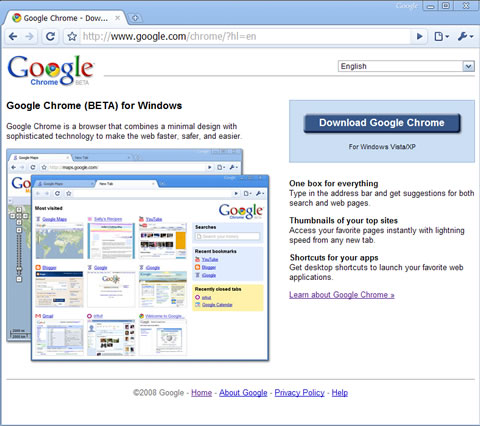
I was very happy with the Google Chrome browser; so I decided to try the new Google Chrome beta. I guess it was too soon. I was not happy with the beta version.
When I uninstalled the Google Chrome beta and reinstalled the old Google Chrome I lost all of the folders and bookmarks that had been on the Bookmarks toolbar.
I was fortunate that I had a similar set on another computer. I was able to export them to my desktop on this computer and then move them one-by-one to the Google Chrome toolbar.
Now that I have a complete set again, I have saved my new settings by right-clicking on the toolbar and setting up an export file that I have saved to a document folder on my computer.
For your information, I copied the files from a Windows Vista Home desktop computer to a Windows XP Pro laptop computer.
This is the process to save your folders and bookmarks before you need them later; before you do something like I did.
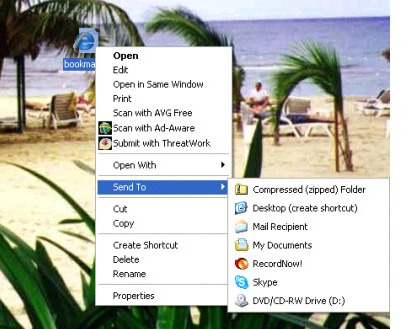
Step one
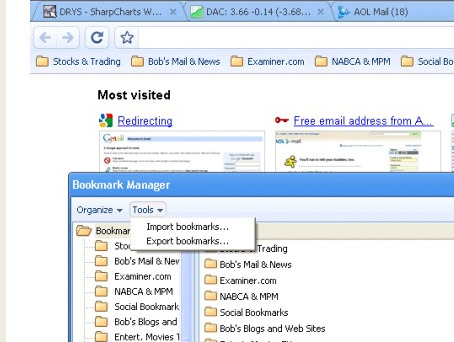
Left-click on the small black open-end wrench in the upper right hand corner on the Google Chrome toolbar
Then click on “Export bookmarks.”
Step two
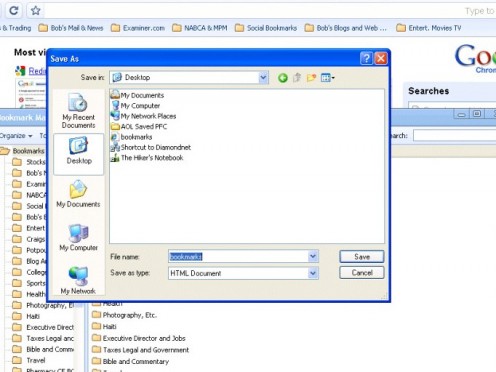
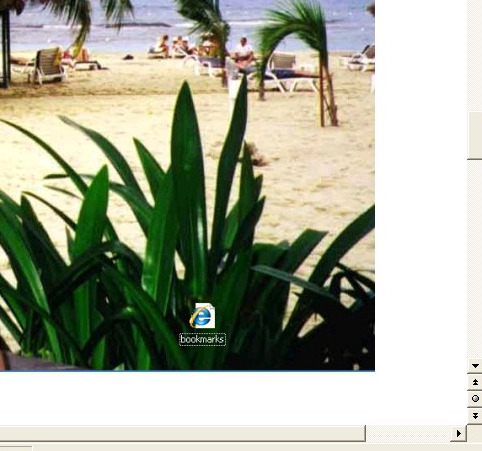
Save “Bookmarks” to your desktop as an HTML document. It will appear on the desktop as an Internet Explorer shortcut.
Step three
I clicked on the Internet Explorer shortcut and checked to make sure that all of the bookmarks and folders were there.
Then I moved the complete “Bookmarks” folder, as an HTML document to “My Documents” and it will be there if I need it again, like I wish I had done before I had the problem and lost them all.
As per my usual, I am now prepared for the next time this happens.
Maybe you will be more cautious than I am and do it now; before you have a problem.