Moving your OST in Outlook 2007
83
|
Total Workday Control Using Microsoft Outlook, 2nd Ed.
Price: $13.93
List Price: $21.95 |
|
Outlook 2007 For Dummies (For Dummies (Computer/Tech))
Price: $3.67
List Price: $21.99 |
|
Microsoft Office Outlook 2007 Inside Out
Price: $21.92
List Price: $44.99 |
|
Microsoft® Office Outlook® 2007 Step by Step (Step By Step (Microsoft))
Price: $7.08
List Price: $24.99 |
Sometimes where Outlook chooses to place your OST just isn't right
For Exchange users who work in a disconnected mode a lot (and those with slow or intermittent connections to the server at home or in the office) the OST or Offline Storage / Cache mode in Outlook is an absolute blessing.
You can work disconnected and then sync back to the server to send/receive your email, update your calendars etc. I spend a lot of time with my laptop in cafes between meetings and being able to sync over WiFi or my cellphone as a modem (and have the connection downgrade and trickle just headers and let me select what's important if the connection is slow) is a life saver
But sometimes when you set up Outlook the default location for the OST isn't always optimal. For me recently it tried to put it on my fairly full C: drive which I try and keep for just the OS and Application files - all personal data should live on the D: Drive
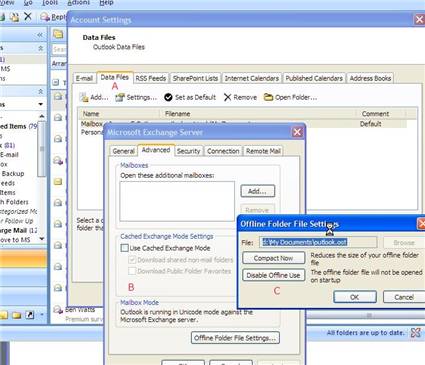
Moving the OST
Luckily, it's not to difficult to move the OST from the default location to anywhere you want it
Refer to the picture above, and follow the simple steps (don't forget to restart Outlook when prompted)...
- Go into Tools | Account Settings
- [A] On the Data Files tab select the data file for the account
- [B] Turn off "Cached mode" on the "advanced" tab
- [C] Disable "Offline use" on the "offline folder" settings popup
- And then.... you can move the .ost (in Explorer) and reference the new location to have Outlook work with it
- When you've finished don't forget to re-enable "Offline use" and turn "Cached mode" back on - otherwise you'll only be able to work when connected to the remote server
When you have finished this process Outlook may spend a moment re-synchronising your local data with the server, but if you have moved and used a recent OST then the process will be no longer than a normal send/receive.
Don't forget to keep your OST tidy
PrintShare it! — Rate it: up down [flag this hub]
Thanks... nice, simple and workabe solution
unreal - thanks a lot!
Easy, only once you know how - thanks.
Gord
Thank you, realy good.
Sehr schön,
ich danke dir!
great! that was simple! thanks!
Thanks for that!!!
A lot easier than the old method of manual regedit that I use to use! Thanks!
Very useful advice. Thanks!
--Bill
How many years did it take for MS to get the hint?-M
Outlook is no fun. Every time I try to move my ost, it is no good at all. Just don't do it.
@Quinn - did you follow the instructions above? I've used them several times at it works fine. What version of Outlook are you using?
This was very useful. Thanks for the advice.
I had trouble with this, but after multiple pop error boxes when trying to restart outlook it finally worked. Make sure you close Office Communicator if you use it.
Hmm, the tip does not seem to apply to IMAP-accounts...?
Great, You've helped me alot. Thank You :)
thx a lot!!.. really helped..
Just what I was looking for! Thanks so much.
Genius!
A good advice, thanks.But in my case, i can't disable Exchange Cache Mode - the checkbox is disabled. Do you have any hint?
Thanks - Simon
Perfect. I had been told it was not possible and feared trying a manual move of files and some regedit botch.
Thanks a million.
@Simon - if the checkbox is disabled you need to go "offline" first (disconnect from your Exchange server) - you can't do an update while connected...


Ajay says:
2 years ago
This was really brilliant advice. made my day :)