- HubPages»
- Technology»
- Computers & Software»
- Computer Software
Excel Vlookup - 3 Practical Ways to Identify and Solve Problems in the Lookup Column

The easiness of performing a Vlookup stops when you deal with messy data. Low quality tables lead to non-matching headaches. The problems are located either on the lookup column or the index column of the source table. The most common glitches are:
- Invisible characters
- Numbers stored as texts
- Spaces
- Undesired characters
These issues have to be managed carefully. Here I will show you handy techniques you can use to identify and get rid of those problems.
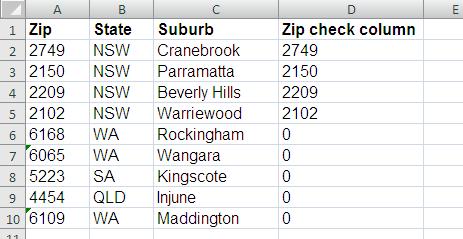
1) Identify the cells that are not numbers Use the function N. The N function converts a non-number value to a number. Numbers are returned the same, and non-numbers are returned as 0.
Write the function on an auxiliary column this way: =N(A2). See column D below…
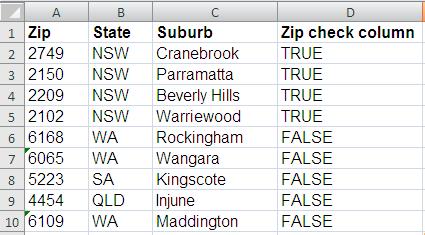
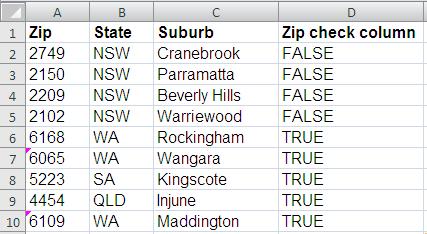
You can also use the VALUE, ISNUMBER, ISTEXT functions with similar results.
Write the function on an auxiliary column this way: =ISNUMBER(A2). See column D below…
2) Make spaces evident to the eyesight
Write the CONCATENATE function on an auxiliary column this way: =CONCATENATE("*",A2,"*"). See column D below…
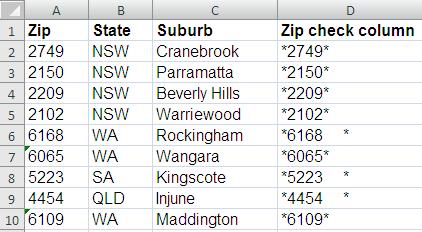
You can also use the LEN function
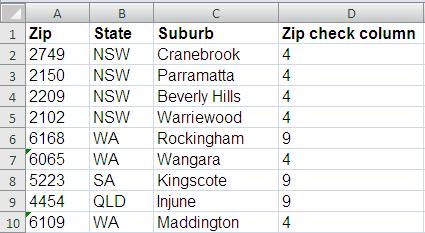
This tactic is useful when you deal with same-length cells. Those cells that contain spaces will have a greater dimension.
Write the function on an auxiliary column this way: =LEN(A2). See column D below…
3) Show flags for numbers stored as texts
Go to Options>Formulas>Error Checking
Then assign a color that gets your attention. See below…
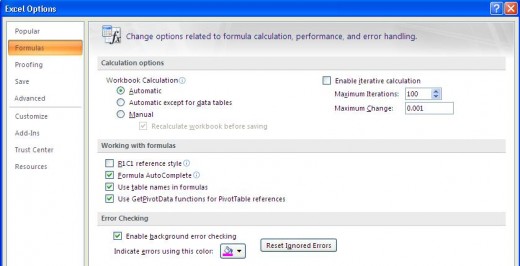
You can easily identify those cells that has problems
4) Highlight cells that are not the type of data you want
You can do this easily by using conditional formatting. The example below is showing the cells that are texts as red.
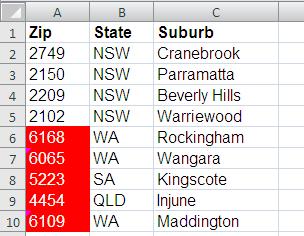
How do you do that?
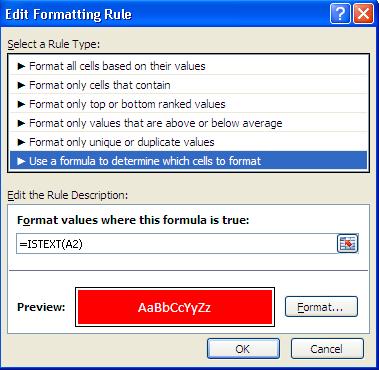
Launch the conditional formatting command and then…
Choose the option “Use a formula to determine which cells to format”
Use the functions: ISTEXT, ISNUMBER or combine them with IF formulas:
5) Reveal numbers that are texts easily
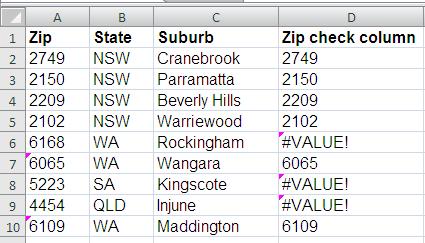
Adding 0 to a text would produce a #VALUE error, this is an easy way to detect numbers that are not numbers
Write the function on an auxiliary column this way: =A2+0. See column D below…
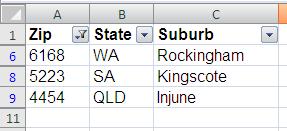
6) Filter cells that contain spaces or any other undesired character
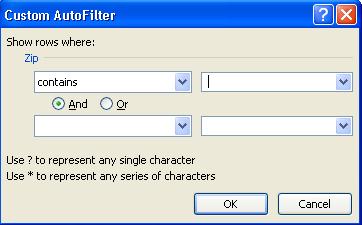
Apply a filter to the lookup column, use the “Contains” criteria and type a space as the character. See below
Now that you have identified the problems; how to fix them?
The surest way to do it is by replacing things by hand, of course you don’t want to do it this way so; here I share to you handy techniques to do it…
How to convert numbers stored as texts to numbers
- Use this simple formula: --(A2). The double dash in the formula makes the job of converting the number-as-text to number
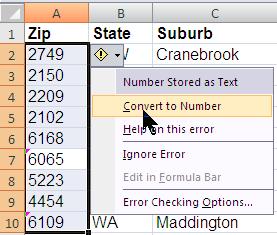
- Convert them massively. Select the problematic column and click the warning icon and then choose “Convert to Number”. All numbers-as-text in the selection will be converted to numbers. If the warning icon is not shown after the selection, use the Tab key until one cell that contains the mark is highlighted
How to get rid of spaces
- Use the TRIM function
=TRIM(A2)
Take into account that this function does not work all the time.
- When the cells contain equal length values you can extract the left portion that is correct.
Use the MID function this way: =MID(B2,1,4)+0
Add 0 at the end to convert number-as-texts to numbers automatically.
- My non-orthodox way
When the cells contain variable-length data you can replace the “*” character twice and then add 0 to convert the cell to a number. This is the function…
=SUBSTITUTE(SUBSTITUTE(B66,CHAR(160),"*"),"*","")+0
Believe or not, there are some cells that contain weird spaces (Excel interprets these spaces as a different character). When you replace spaces by “*”, a space remains, so I use the SUBSTITUTE function twice. On the second replacement you get rid of it and then you are ready to work with those cells.
Conclusion.
Use the above techniques to catch problems in your data, combine them as per need and then get rid of those intruders using the above tactics or your own techniques.
Don’t stop cleaning your data until it is free of problems. Why starting to write a Vlookup if you know the source table or lookup column contains problems.
Excel resources
- Vlookup video
- Excel Vlookup Tutorial
Comprehensive Vlookup Tutorial shows you how to implement an Excel Vlookup function succesfully - Is a SUMIF Multiple Formula a Problem for you? It wont Be since Now - Excel Spreadsheet Authors
You may be struggling with SUMIF Multiple but there is no need to worry about it, Excel has more than 7 ways to do it. In this article you will learn 7 - Excel Pivot Table Tutorial
Comprehensive Pivot Table Tutorial shows you how to use this Excel Reporting tool - Excel Sumproduct Quick Start Guide
Comprehensive Excel SUMPRODUCT book shows you how to create reports with ease