Tips on Basic Computer Function Keys - Keyboard Function Command Key

Using a Personal Computer - Operating a Personal Computer
We can't do without computers we need them for schools, offices, cars, store cash registers to bank ATM machines. Computer chips are in almost every electronic. Computers today are more advance than in the 1960s, back then they were real huge and bulky. You don't need to know typing skills to use a computer. There are many typing websites online that are free and will teach you typing basics. Learning to type will get better with time, if you're consistent and willing to do the basics.
Some people do not want to deal with computers; but they don't know what they are missing. Computers can bring the younger and older people together. The younger generation seems to know more about today's technology than the older generation. I was sitting next to this elderly guy at the library, we were on the computers, and he seemed to know what he was doing. It impressed me that he didn't ask for anyone's help. People from age 3 -100 need to get computer knowledge. It can be fun such as playing games on the computer; the computer game 'solitaire' is many peoples favorite game.
Computers can help with maintaining a sharp memory. Mental alertness is what we all need, and owning a computer will help keep a person on their toes. Communication with loved-ones in an email is a bonus. You can save money on postage stamps, envelopes, or wait time. An email will get to them in less than a few seconds, which is the coolest thing ever. Also writing an email to someone in another state or country is amazing. Some people use web cams also to communicating long distance.
Many like watching TV shows and movies online sometimes. It is very entertaining, and we can stop paying cable TV bills if we want, and sign up for online TV with http://www.Hulu.com or Netflix.com. Watching TV online is free, which is a great thing in budgeting family money. Most people do all their music activities online such as transferring music to their MP3 players, iPods and iPhones. It keeps them entertained listening to their favorite music artists: music videos and new music hits.
Basic Function of Computer
The computer monitor is used to display information. The system unit stores this information on disks. The keyboard and mouse are the most commonly used devises. Programs are instructions or commands that a computer follows. Programs, and the disks they're recorded on, are called software. The CPU is the central processing unit; it's called the brain of the computer. Some computers may include an image scanner or a digital camera.
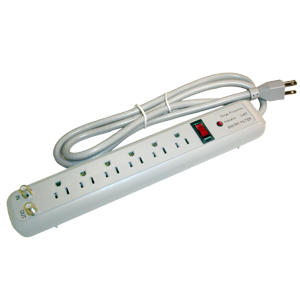
Computer Connections
It's better to use a power strip with multiple outlets for plugging in your new computer, monitor, modem, and other devices. The power strip also provides protection against energy surges. It contains a battery that provides energy to the computer when the electricity fails. This power strip also helps save energy.
Once you're online, register your personal computer. Then get started with your new gadget and enjoy. It will have software already installed in the brain of your PC. Microsoft Windows is the software on your computer you will be using. Bill Gates owns and started this Microsoft Windows Company; he's one of the richest people on the planet. Your new PC will have an installed calculator and software called 'paint' for the artist in you. I know people who still have their personal computers after 10 years; due to them using a program in their computer called "system tools". This keeps the computer clear of clutter from all the activity it has been doing. To do this, click the "start" menu at the bottom of your screen. Click "all programs," select "accessories," then select "system tools," then choose "disk clean up." Let it continue to do disk cleaning, it will take a few minutes. When it finishes it will have an options for "ok" or "cancel," choose "ok" option, finally it will ask for you to select "yes," and now you're done. After that go the same route again but different task for "disk defragmenter." Start by clicking the "start" button at the bottom or your screen again, choose "all programs," then select "accessories," select "system tools," choose "disk defragment," then click "analyze" it will take a few minutes to finish analyzing, when it is finished with analyze click "disk defragment" button next to the analyze button, let it finish doing this process it takes a little longer than analyzing.
When it finally completes from clearing your PC of all the clutter (disk defragmenting). Restart your computer. Now it will run faster and last longer. Some people use Windows XP software or Windows 7 installed in their personal computer; these are a couple of the best operating systems Bill Gates invented.
Computer Commands
Let me tell you about a command I learned it is the "Ctrl" (control) key on the keyboard and the letter "A" key on the keyboard. Hold both of these buttons at the same time to highlight a whole page or document. You can use this command to copy and paste whatever you want. Give it a try; highlight a page by holding the "Ctrl" and "A" key at the same time on your keyboard. Then right mouse click on the highlighted area, choose copy, then paste it in another page or document. Cool right?
Laptops
The convenience of using laptops can become reliable. People use their laptops on an airplane, also in hotel rooms; if they have Internet hookups. There are so many places to use laptop computers, laptops are common to use in libraries as well. Technology isn't going away, so we need to catch up with the times and upgrade our technology experiences. Owning an upgraded gadget is a smart and hip idea, it makes life a little easier.
Keyboard Function Commands - Commonly Used in Microsoft Windows Programs
- F1 - Help menu
- F2 - Rename a highlighted icon or file
- F3 - Opens the "Search" feature
- F4 - Opens the "Find" window
- F5 - "Refreshes or Reloads" the page or document
- F6 - Moves the cursor to the address bar
- F7 - Used for spell check and grammar check a document in Microsoft programs
- F8 - Used to access Windows safe mode
- F9 - Opens the measurements toolbar in Quark 5.0
- F10 - Activates the menu bar and activates the hidden recovery partition on HP computers
- F11 - Full screen mode (toggle key)
- F12 - Opens the "Save as" window (toggle key)
Most of these functions have different affects depending on which programs or software you're using. You can practice most of the function command keys that are mentioned above and below, try playing around with some of the common commands in a document that you don't really need. Just avoid using commands F8 and F10 unless asked to do so by a computer technician.
Keyboard Control Key Functions - Commonly Used in Microsoft Windows
Ctrl+A
| Highlights or selects a whole document or field
|
|---|---|
Ctrl+B
| Bold
|
Ctrl+C
| Copy
|
Ctrl+D
| Add to Bookmarks (browser)
|
Ctrl+E
| Center alignment
|
Ctrl+F
| Find (small selected text in a document)
|
Ctrl+G
| Go to number line
|
Ctrl+H
| History in browser or Replace
|
Ctrl+I
| Italic
|
Ctrl+J
| Justify
|
Ctrl+K
| Enter query into search browser (Windows 7)
|
Ctrl+L
| Left align or create list
|
Ctrl+M
| Decrease margin by 1/2 inch
|
Ctrl+N
| New document, file, window, etc.
|
Ctrl+O
| Open
|
Ctrl+P
| Print
|
Ctrl+Q
| Quit application
|
Ctrl+R
| Right alignment or Refresh page
|
Ctrl+S
| Save
|
Ctrl+T
| Open new tab
|
Ctrl+U
| Underline
|
Ctrl+V
| Paste
|
Ctrl+W
| Close tab or window
|
Ctrl+X
| Cut
|
Ctrl+Y
| Redo (or Ctrl+Shift+Z)
|
Ctrl+Z
| Undo
|
There are many uses for the "control key," (Ctrl) when this key is pressed at the same time with other keys it will become a function command.

More Control (Ctrl) Command Functions
Ctrl + <---
| Previous word
|
|---|---|
Ctrl + --->
| Next word
|
Ctrl+Delete
| Delete next word
|
Ctrl+Backspace
| Delete previous word
|
Ctrl+Alt+Backspace
| Rarely used or Undefined
|
Ctrl + Alt + ^ (up arrow)
| Rotate screen upside down
|
Ctrl + Alt + (down arrow)
| Rotate screen right side up
|
Ctrl + Alt + <---
| Rotate screen left
|
Ctrl + Alt + --->
| Rotate screen right
|
Ctrl+Shift+Esc
| Task manager
|
Ctrl+Alt+Delete
| Task Manager/ Windows Security
|
Crtl+Shift+Tab
| Previous tab or Window
|
Ctrl+Tab
| Next tab or window
|
Ctrl+Page up
| Previous tab
|
Ctrl+Page down
| Next tab
|
Ctrl+Insert
| Copy
|
Ctrl+Home
| Top of document or window
|
Ctrl+End
| Bottom of window or document
|
Ctrl+[
| Decrease font size
|
Keyboard Function Commands Poll
Do You Use Keyboard Function Command Keys?
Watch this video - 12 Basics Commands Everyone Should Know
© 2011 Ann810
Related
Computer Based Antivirus Strategies That Secure Your Computer Online
A Review of MacBook Pro MGXA2LL/A 15.4 Inch Laptop with Retina Display
Best Computer Operating System Software for Old Slower Computers

The 3 Major Components of a Computer System

Keyboard Shortcuts and System Commands for Popular Programs