Homepage Setting Procedure for Google Chrome

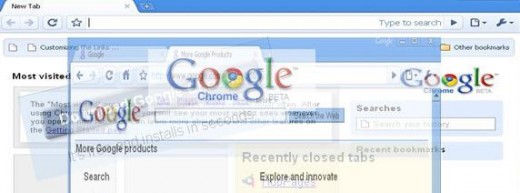
Google Chrome (BETA) is a browser for fast, safe and easy browsing. Browser's homepage plays an important role to everyone. Some like his browser homepage will be "Google", others like "Yahoo", others like "Hubpages" etc. or others like there will blank page at the starting of his browser. Step by step homepage setting procedure will be described in this pages.
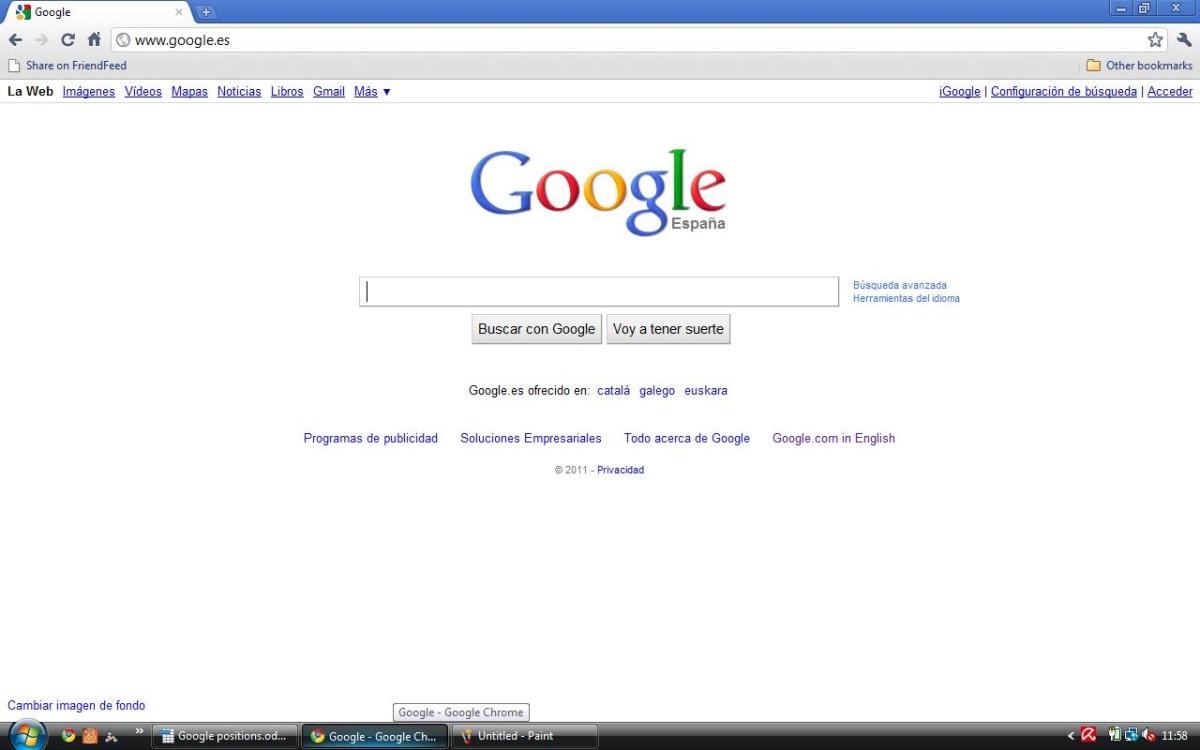
You can easily install Google Chorme from Google's web. It's totally free. After installing the browser, it looks like the followings when you first open it.
First look of Google Chrome
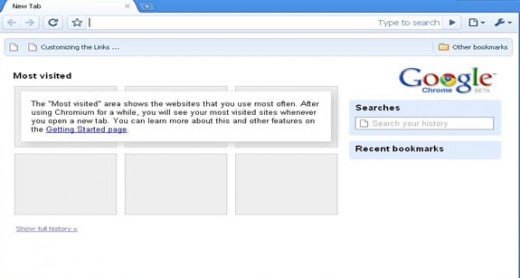
To setup your home page settings, please follow the following steps:
Selecting "Options"
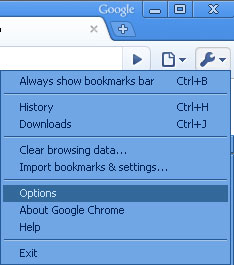
Step 01: Selecting "Options".
After opening Google Chrome, select the right top corner's "Customize and control Chromium" option. When you click that a drop down menu will come and there will be a "Options" indicating menu. Click that to open and do the followings for the settings of your homepage.
"Home Page" Part Editing
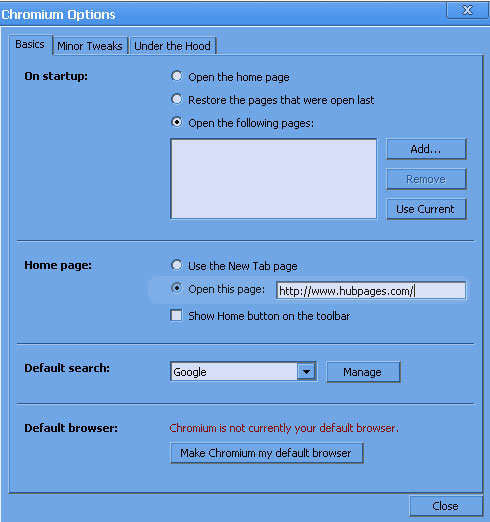
Step 02 : "Home Page" Part Editing
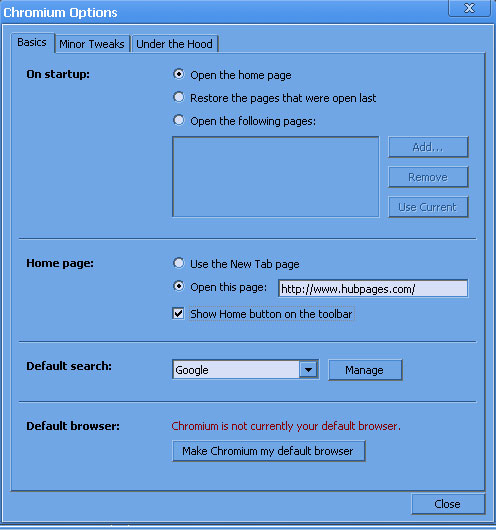
When you select "Options", a new window will come. On the "Basics" tab there is "Home Page" part. Select the option "Open this page" and write down the web url that you want to make as homepage. The check box option helps to add the home button on the toolbar. Form the toolbar, by clicking the "Home" you can easily go to the homepage link.
From "On start-up" tab select "Open the home page" radio button to make your desired url as homepage when chrome will start.
And that's all for homepage settings in Google Chrome. At last, close the options window. Close the browser. Open it again. And you will see your desired page as homepage.
If you are interested to open multiple pages when you start the browser, you will need go through the next step.
Home Page Editing Options
Step 03 : Opening Multiple Pages at starup
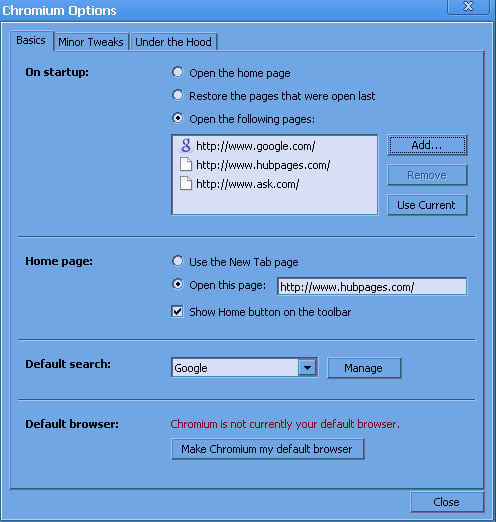
Go to "Customize and control Chromium" on the top right corner of "Google Chrome", then select "Options" and select "Basics" tab.
Form "On Startup", add the desired urls. For example, you want to start "www.google.com", "www.ask.com" and "www.hubpages.com" links to open at the start up time of your browser. So, click "Add" and put your url address. Do for the others. Now close your "Google Chrome Options" window. Close the browser. Open it again. Now you can see that all the pages are opened successfully. Congratulation!! I think you finish all these steps easily.
"On Startup" option editing
When you finished all the above procedure, you will see the following type picture at every startup of Google Chrome. So, enjoy through your browser.
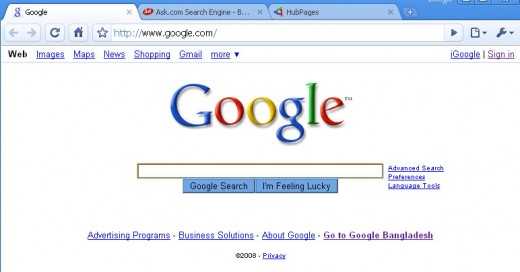
Google Chrome Home Page Settings
To configure homepage settings, are all these step-by-step procedures helpful?
Google Related Writings
- Schedule Yourself Through SMS or Email Through Googl...
Human life is a collection of events and moments. Some events are happening daily such as, for a school boy, he has to go school daily and for a job holder, he has to go office daily. Moreover, there are...