create your own

Horizontal Navigation Bar for Blogger - Without Hacking Your Template

87
rate or flag this page

By KatieP ThinEnough

This is a simple way to create a horizontal navigation bar at the top of your Blogger page. Most hacks for this process involve inserting code in your blogger template. This no frills solution creates a navigation bar through the existing 'add gadget' function.
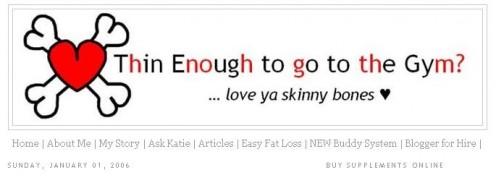
Horizontal navigation underneath your blog header

From your blog page chose CUSTOMIZE - PAGE ELEMENTS - ADD A GADGET - HTML/JAVASCRIPT.
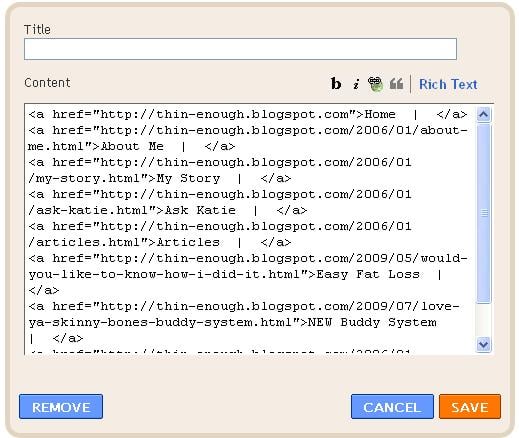
HTML code for horizontal navigation in Blogger
<a href= "http://yourname.blogspot.com/pagename">label  |  </a>

The HTML code is the same link you would use for any standard hyperlink.

If you put in some spaces before and after a pipe symbol (I didn't know it was called that until I just looked it up - it is over the backslash on my keyboard) at the end of your labels they have white space between them ... "Articles | "

Save the gadget box and then drag it to just under your header.
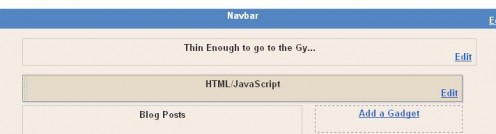
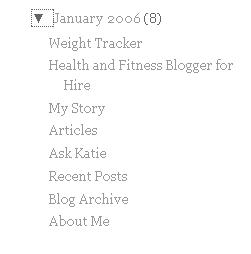
newly created gadget positioned under the header

post all your information on a date that precedes the start of your blog to make it easy to find and edit

The backstage work is to post any new information you want to link to on pages backdated to the 1st January that precedes the start of your blog. Then they don't show up as new posts and confuse your readers (unless you want them to).

I have all mine posted on 1 January 2006 so they are all archived in the one month and are easy to find.
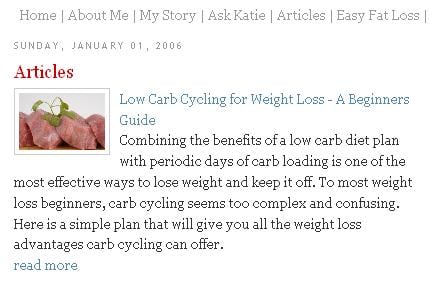

Hubpages articles linked from your blog

When you want to link to your hubpages from your blog, just insert the information on the page that links to your ARTICLES label in the horizontal menu bar.

So there you have an easy no fuss way to insert a horizontal navigation bar underneath your header in Blogger without the need to hack the HTML code of your template. It is not flashy or very exciting, but it is a simple solution if you want a quick and painless way to have hot links to your favorite posts prominently installed at the top of your Blogger page.


Print   —   Rate it:  up  down  flag this hub

Comments

RSS for comments on this Hub

Anamika S profile image

Anamika S  says:
4 months ago

This is an info i was looking for. Thanks for sharing.

KatieP ThinEnough profile image

KatieP ThinEnough  says:
4 months ago

You're welcome.

Tycie  says:
4 months ago

Hey girl,

This seems to be what I am looking for and I cant seem to click on the HTML so that the code will come up! Where can I get the code to add to my blog? I would love your help!!! Thanks so much!

Tycie

KatieP ThinEnough profile image

KatieP ThinEnough  says:
4 months ago

Hi Tycie

You just need to copy the code in the html box and then paste it into your 'add gadget' html box in Blogger as many times as you need it.

Julie  says:
4 months ago

This is just the sort of tutorial I need. I really want to make my blog my own but don't know enough about coding etc. to really make a difference. This is fantastic

Thanks for taking the time to write and post this!

Julie

KatieP ThinEnough profile image

KatieP ThinEnough  says:
4 months ago

Thanks Julie, I love playing with my blog (which now looks totally different from when I posted this!)

Shynn  says:
3 months ago

thank you so much! u're genious!!!

Tara  says:
3 months ago

I did what you said but when I hover my mouse over the horizontal bar that I created, it isn't a link. Any suggestions? Thanks!!!

New Kid  says:
2 months ago

I can't get the links to click through, help?

New Kid  says:
2 months ago

Fixed, make sure it's a href NOT a ref and the links will click through.

KatieP ThinEnough profile image

KatieP ThinEnough  says:
2 months ago

Thank you so much New Kid -- I didn't realise the typo in the code box. I've fixed it now. Thank you again.

New Kid  says:
2 months ago

You're very welcome, thank you for the easy way to do the bar!

ME  says:
2 months ago

I tried but did not work, just the home link, it refreshes, the other links did not work, I compare it to your pic above and is the same

me  says:
2 months ago

this is the message I got

Page not found

Sorry, the page you were looking for in the blog test does not exist.

Prabu  says:
2 months ago

This information is very useful to blogger. Thank's for sharing.

sixmats.com  says:
2 months ago

Great idea!

samironwebtrack profile image

samironwebtrack  says:
2 months ago

Hi Katie Thank You, for very long time i was looking for this solution, now i get it..its really a simple one.

EWealthGuide profile image

EWealthGuide  says:
6 weeks ago

Thank you very much for this tutorial. Great info here, and look forward to seeing what you post next!

saifi  says:
4 weeks ago

thanx alot i m searching for this for along time

KatieP ThinEnough profile image

KatieP ThinEnough  says:
4 weeks ago

Thank you to everyone for your kind words. I've graduated to Wordpress now so maybe I can share my tips and tricks for that platform in the future.

THAURISWULFA  says:
2 weeks ago

http://hubpages.com/hub/thauriswulfa

wanna learn hacking

promote

please

please

send some students

Submit a Comment

Members and Guests

Sign in or sign up and post using a hubpages account.


optional


  • No HTML is allowed in comments, but URLs will be hyperlinked
  • Comments are not for promoting your hubs or other sites

working