How To Remove Sidebar Titles In Blogger


The blogger sidebar titles are perfectly useful if you have a standard template and nothing fancy going on with your blog. If, however, you have had a custom blog created -- or if you just want to fancy it up yourself -- these blog titles might appear to be in stark contrast to whatever you or your blog designer have come up with. Unfortunately, the removal of these titles isn't something which can be accomplished via the blogger control panel, page elements or elsewhere. You have to change this by going into the html manually. The good news is that it's very, very simple to do. But first, lets take a look at why we might actually want to do this in the first place.
Main reasons for wanting to remove blogger's sidebar titles:
If you take a look at a custom-built blog (mine, for example, which you can visit via my profile page) you'll see that I have custom made titles for each heading, including my archives, about me, and blogroll sections. These images are linked to from another source, they are not "uploaded" or hardcoded into the blog itself, so the blogger platform still thinks I "need" titles of some sort. If I don't want two titles showin, I have manually remove the blogger version.
Having removed the titles manually from the HTML code means that you can now give all of your widgets internal titles (on the elements page). If you want to make your blog titles invisible by simply not having an internal title, this can make things VERY confusing when it comes time to rearrange or update the widgets you already have.
When you should keep the sidebar titles showing:
- A blog might look a bit strange without some kind of title above the various widgets or sections, so, unless you have already prepared new buttons/titles, it really wouldn't make sense to remove the ones you already have.
How to Remove The Blogger Sidebar Titles:
1. Login to your dashboard.
2. Click "Layout"
3. Click "Edit HTML"
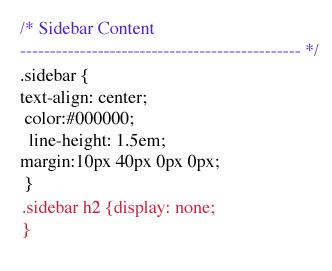
4. Scroll down until you find the Sidebar Content section. You can see what it will look like in the BLUE section in the image to the right.
5. Staying in the Sidebar Content section, look for the h2 code. If you don't see it, that's fine -- copy and paste the code you see in RED in the image to your right, and paste it somewhere within the Sidebar Content section, as you see it done here. (Copy it from the bold text below.)
.sidebar h2 {display: none;
}6. If you DO see an h2 code already there, simply delete it and paste the new code in it's place.
7. PREVIEW your blog before saving. If you miss one little part of the code, it will not render properly. If you preview it and things look correct, go ahead and save. If they don't, clear your edits and start over.
8. When finished, save your new html and enjoy!