Optimizing FireFox Tips, Hacks And Tweaks


Firefox or Firefox 3, an open-source browser, is the best browser, which is favourite most of the people including me. By applying several awesome extensions (several extensions are available which are free absolutely), it's getting better and better day by day. There is a lots of optimizing techniques and lots of hidden tips and ticks and lots of hacks and tweaks, by which you can make this browser faster, cooler, more efficient and optimized as your own wish. This page tells you the secret tips, hacks and tweaks to do all. Just keep reading...
FireFox Tips, Hacks and Tweaks
In the following section, several tips, hacks and tweaks are provided for Firefox. In fact Firefox supports many hacks and tweaks. All's are the great advantages for the optimization of Firefox. Here, I mentioned several tips, tricks, hacks and tweaks. All these are really helpful for optimizing the browser to suit your daily needs at the time of surfing Internet. By applying these tips, tricks, hacks and tweaks, you can easily learn the keyboard shortcuts, mouse shortcuts, screen optimization techniques, start-up Firefox faster, decrease RAM for Firefox, bookmarking techniques, tabs navigation, Firefox Easter eggs etc. Just use these tips, hacks and tweaks to get the best performance.
Some pages you may like...
Hacks and tweaks by modifying "about:config"
The about:config file is the core configuration file of Firefox.By editing about:config, users can change many preferences according to their own wish. The best hacks and tweaks of Firefox is listed in this section. Before editing this file, you must have to write about:config at address bar of Firefox. After writing it, hit Enter key of your keyboard and modify the following things for best hacks and tweaks of Firefox. Actually to do these modification, you have to go through two steps:
Step one: Type about:config in the address bar of FireFox and hit Enter key.
Step two: Now, do the following modifications to the file. Here, you have to type or modify the respective value fields to get the desired result to get the best optimization.
Note: All these tips, tricks, hacks and tweaks can be fully implemented to Firefox 3. If you have the older version, some of the tips may not be workable. So, better to download Firefox 3. Moreover, Firefox 3 does not support some of the extensions. So, to use those type of extensions, you may need to reinstall them again which is a boring task. But the truth is that if you download, use and apply the tips, tricks, hacks and tweaks then you feel that you really optimized your browser and you are getting the best performance of Firefox 3.

1. Auto Complete URL while you type at the address Bar:
browser.urlbar.autoFill=True
2. For setting the number of auto complete URL in the address bar
browser.urlbar.maxRichResults = #
(Here, # indicates the number of auto complete URLs that will be shown. The default value is 12)
3. For Speeding up the browser, all the tweaks of Firefox are:
network.http.pipelining false to true
network.http.pipelining.maxrequests 30 to 8
network.http.max-connections 30 to 96
network.http.max-connections-per-server 15 to 32
network.http.max-persistent-connections-per-server 6 to 8
network.http.pipelining.ssl false to true
network.http.proxy.pipelining false to true
4. To disable all the annoying browser behaviour by setting the following value to "False"
dom.disable_window_open_feature.menubar

dom.disable_window_move_resize

dom.disable_window_open_feature.titlebar

dom.disable_window_open_feature.toolbar
5. To enable spell check in text fields change the following thing:
layout.spellcheckDefault = 2
6. To disable blinking text or texts, change the following option:
browser.blink_allowed = False
7. To display search results in new tab during search, do the following change:
browser.search.openintab=True
8. To disable prefetch, change the following thing:
network.prefetch-next = False
This is very helpful for frequent Google searcher or low speed internet connecion or if your computer has low RAM.
9. To disabler browser toolbar tip, change the value "False" for the following line:
browser.chrome.toolbar_tips = False
10. To extend spell checking to forms, do the following thing (Change Value from 1 to 2):
layout.spellcheckDefault = 2
11. To stop displaying website icon (Favicon) in the address bar and on tab, do the following
browser.chrome.site_icons = False
13. To paste the copied contents by clicking the center button on the mouse, change the following line:
middlemouse.paste = True
12. To enable or disable single click change the following things:
browser.urlbar.clickSelectsAll = True
browser.urlbar.clickSelectsAll = False
14. To disable extension compatibility checks
extensions.checkCompatibility = False
extensions.checkUpdateSecurity = False
16. To show more tabs on single Firefox window before scrolling, change the following line:
browser.tabs.tabMinWidth = 75
Note: Setting small value means reducing Tab width.
17. To increase the number of recently closed tabs, change the following value:
browser.sessionstore.max_tabs_undo=15
18. To show more tabs on a single window, change the following thing:
browser.tabs.tabMinWidth = 75
15. To disabler browser toolbar tip, do the following thing:
browser.chrome.toolbar_tips = False
19. Change the following things to right click view source in your favourite editor:
view_source.editor.external=True
view_source.editor.path= Path of Editor
Note: For example, path may be "C:\Program Files\npp.4.8.2.bin\notepad++.exe"
20. To disable delay time while installing Firefox add-o, change the following option:
security.dialog_enable_delay = 0
Here, 0 (zero) is number of seconds that Firefox should wait while installing Add-on.
21. To increase history undo close tab limit i.e. recently closed tabs, chage the following option:
browser.sessionstore.max_tabs_undo=15
Default value is 10. Choose the value according to your own wish and need.
22. To enable fast scrolling across tabs, change the following field value:
toolkit.scrollbox.scrollIncrement =75
24. For Emule/ed2k link association (Linux users), change the following fields value:
network.protocol-handler.app.ed2k= /usr/bin/ed2k
network.protocol-handler.external.ed2k = true
Increasing screen space
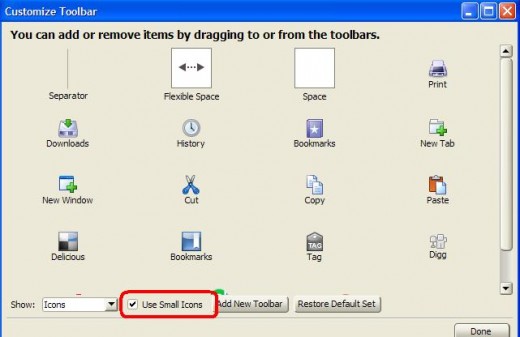
If the icons are small, then the screen space of Firefox is increased. To do this, go to View, then Toolbars and then select Customize. Now, check the box of Use small icons. After doing this, click on Done. In this way, you can increase screen space. For increasing more space, you may read the article Screen Optimizing Firefox 3 Hacks And Tweaks.
23. To create a single close button to for all Firefox opened tabs, chage the following option value:
browser.tabs.closeButtons = 3
25. To increasing ‘Save Link As‘ timeout valu, change the following thing:
Browser.download.saveLinkAsFilenameTimeout : 2000
Note: Default value is 1000 (1 sec). Use any value higher than 1000 (value is in msec).
Amazing keyboard shortcuts
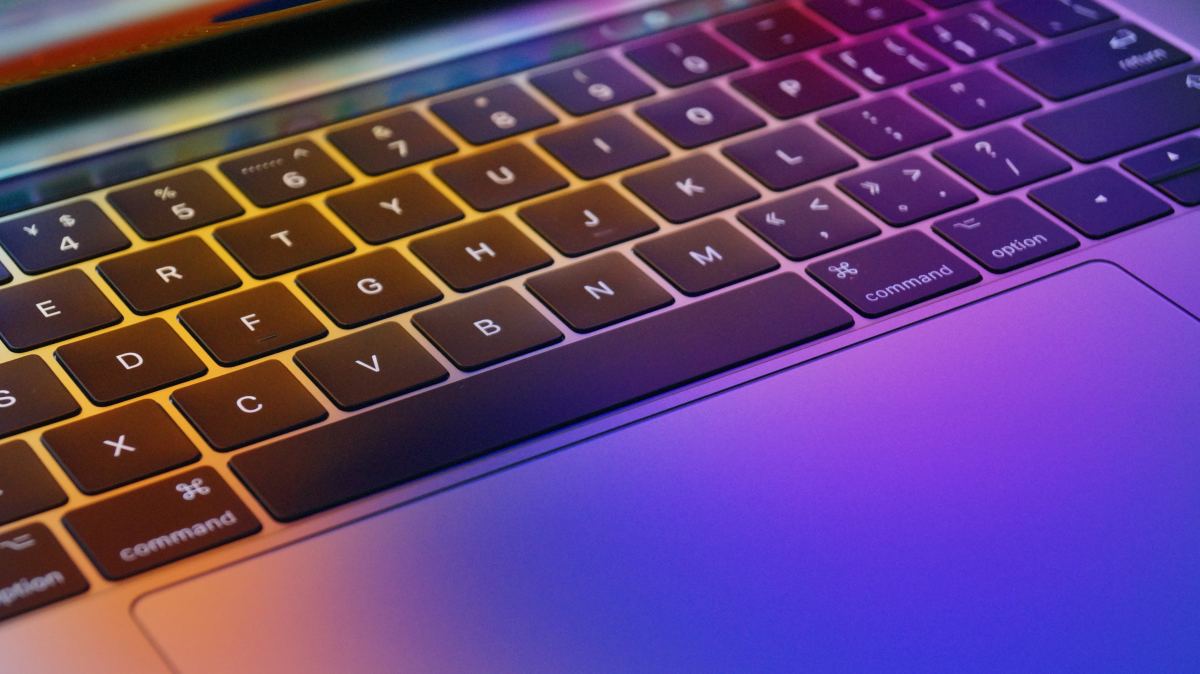
Firefox offers a great no of user friendly shortcuts, which are easy to learn. Some of the useful shortcuts lists are given below:
- Ctrl+T (to open a new tab)
- Ctrl+N (to open a new window)
- Ctrl+F (to find anything to the current page)
- Ctrl+D (to bookmark any page)
- Ctrl + (to increase text size)
- Ctrl - (to decrease text size)
- Spacebar (page down)
- Shift+Spacebar (page up)
- Ctrl+K (to go to search box)
- Ctrl+L (to go to the address bar)
- Ctrl+W (to close the tab)
- F5 (to reload the current page)
- Alt+Home (to go to home page)
Mouse shortcuts for Firefox
Like keyboard shortcuts, Firefox offers a some mouse shortcuts also. Some of my favourite shortcuts are:
- Ctrl-scroll up (to decrease text size)
- Ctrl-scroll down (to increase text size)
- Shift-scroll down (to go to the previous page)
- Shift-scroll up (to go to the next page)
- Middle click on link (to open in a new tab)
- Middle click on a tab (to close tab)
Tab navigation
Using Firefox, you can open many tabs into a window. To select a tab, you generally use mouse. But here you can use your keyboard also. If you want to use keyboard, don't forget to learn the following things:
- Ctrl+Tab (to rotate forward among tabs)
- Ctrl+Shft+Tab (to rotate to the previous tab)
- Ctrl+1-9 (for choosing a number to jump to a specific tab)
Easter Eggs of Firefox
Firefox has some Easter eggs also. To see the Easter eggs, type the following things into the address bar of Firefox and enjoy the Easter eggs of Firefox:
- about:Mozilla
- about:robots
Use the above mentioned tips, tricks, hacks and tweaks and optimized your Firefox 3 and get the best performance of Firefox.
© Written by rancidTaste
If you are enjoyed this post, please consider to give a thumbs up and leave a comment. You may Subscribe to rancidTaste's RSS feed to get new pages which will be delivered to your feed reader. You can also read more hubs by rancidTaste.
Want to express your knowledge and ideas, click here to join Hubpages.
It's simple, just like 1-2-3